List Price is Lenovo’s estimate of product value based on the industry data, including the prices at which first and third-party retailers and etailers have offered or valued the same or comparable products. Third-party reseller data may not be based on actual sales.
Est Value
Est Value (Estimated Value)
Estimated value is Lenovo’s estimate of product value based on industry data, including the prices at which Lenovo and/or third-party retailers and e-tailers have offered or valued the same or comparable products. Third-party data may not be based on actual sales.
Est Value:
Exclusive Price:
Starting at
Instant Savings
eCoupon Savings
Additional Savings
Show Price Breakdown
Configuration Savings
Hide Price Breakdown
Use eCoupon
Includes
Features
Key Details
Part Number
See More
See Less
Coming Soon
more
expanded
collapsed
See More Details
Great choice!
You may compare up to 4 products per product category (laptops, desktops, etc). Please de-select one to add another.
Lenovo and Best Buy have partnered to allow you to pick up Lenovo products at your local Best Buy. Choose a location near you and get it as soon as today!
Choose a pickup location
See all pickup locations
Ready {0}
at {0} {Store Name}
within.miles.of.storename
Pickup Availability near {0}
Update Location
All Eligible Items
Pickup Location for: {0}
{0} Miles Away
In Stock,
Today
Tomorrow
in {0} Days
Ready {0}
Open until {0}
Get Directions
Select This Location
update
Use My Current Location
or
Enter Zip Code
Cancel
Store Pickup:
Pickup unavailable
Available Today at select {0} locations
Get it today!
Get it tomorrow!
Lenovo and Best Buy have partnered to allow you to pick up Lenovo products at your local Best Buy. Choose a location near you and get it as soon as today!
Choose a pickup location
See all pickup locations
Ready {0}
at {0} {Store Name}
within.miles.of.storename
After eCoupon limit is met, price is {nonEcouponPrice}
QUANTITY UNAVAILABLE
Expiration Date:
Remaining Units:
My Price:
Hide quote dialog
Sign in or Create an Account
Sign In
Email Address
Password
Not enrolled for rewards? Join Now
By joining, you agree to the Terms of Use and you are opting in to receive Lenovo marketing communications via email.
/us/en/rewards/terms/
Terms of Use
Remember me
Forgot your username or password?
Create an Account
You can store addresses, easily keep track of your orders and save items in your cart for later.
Before you go, create a free account!
Create an Account
You can store addresses, easily keep track of your orders and save items in your cart for later.
The email format is incorrect, please try again
First Name
Maximum length is 50 characters
Last Name
For security purposes, password must contain:
8-20 characters
At least one letter, one number, and one symbol ($!#&)
Confirm Password
I agree to opt-in to Lenovo communications and I understand that my data will not be shared.
By joining, you agree to the Terms & Conditions and you are opting in to receive Lenovo marketing communications via email.
If you would like to earn rewards, you will need to check the join Rewards checkbox above. To create an account without earning Rewards, register below.
Register
The email format is incorrect, please try again.
Must contain 8-20 characters including 1 letter, 1 number and 1 symbol ($!#&)
We’re sorry, there are no locations within {0} miles.
Please update your location or select from available Best Buy locations below that exceed {0} miles.
Blue light is part of the visible light spectrum that is considered HEV, or high-energy visible light. With mobile, computer, and television technology, people are now more exposed to blue light than ever before.
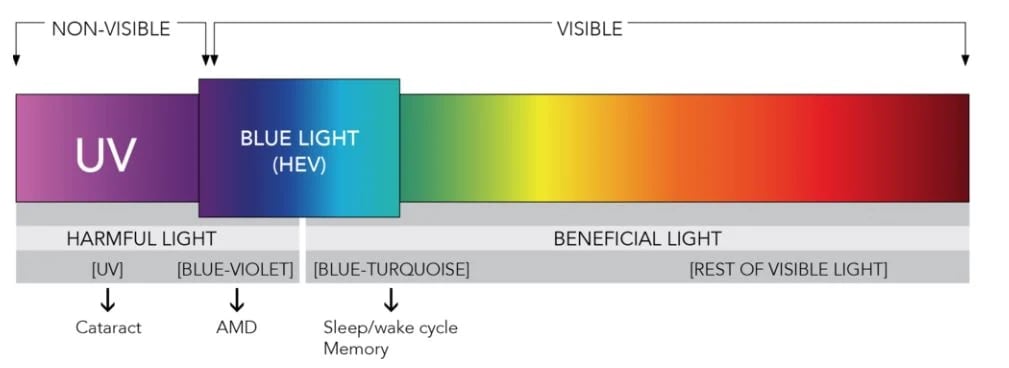
Blue-turquoise light is important to help influence the body’s clock, helping us to awake and sleep. Light from a little farther up the spectrum, however, can have negative effects, impacting eye health and sleeping patterns.
Lenovo Vantage Eye Care Mode
Lenovo offers an "Eye Care Mode" tool in its Lenovo Vantage software that enables users to reduce the amount of blue light emitted from their PC monitor.
How to use Eye Care Mode in Lenovo Vantage:
Search "Lenovo Vantage" using your Windows operating system search function (in the Start menu or taskbar, lower left corner of your computer).
Click "Lenovo Vantage."
Click the "Hardware Settings" button on the main page, then select "Audio/Visual.”
In the "Eye Care Mode" section, turn on the "Eye Care Mode.” Blue light emission will be reduced to a more comfortable level, and the slide bar cannot be moved. If the "Eye Care Mode" is turned off, blue light emission will return to the previous value that was set.
You can slide the bar to adjust the blue light emission level when the "Eye Care Mode" is turned off. Sliding the bar to the left results in a warmer screen color and to the right, a cooler screen color.
For more information on Lenovo Vantage, including details on how to download and install it, click here.
Low Blue Light Certification
TÜV Rheinland, an independent provider of technical testing services for product safety and quality has awarded Lenovo with the world’s first low blue light certificate for All-in-One desktop computers.
The Lenovo All-in-One systems listed below have been certified “low blue light” by TÜV Rheinland, a leading provider of technical services worldwide headquartered in Cologne, Germany.
