What is Windows 7?
Windows 7 is an operating system developed by Microsoft. It's designed to make your computer more reliable and responsive, offering an improved desktop experience that helps you get the most out of your PC in terms of performance, security, and graphical user interface. Windows 7 was highly praised for its increased speed and efficiency over its predecessors and its user-friendly interface.
Can Windows 7 still be used safely?
Yes, you can still use Windows 7 safely with a few caveats. Since Microsoft ended official support for Windows 7, it doesn't receive updates or security patches anymore. To keep it safe, you should have a reliable antivirus installed, be cautious with the programs you download, and avoid browsing on insecure websites. Additionally, network security measures like a secured Wi-Fi connection and a robust firewall can help protect your system.
What are the system requirements for installing Windows 7?
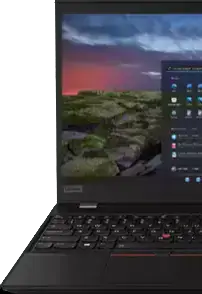
To run Windows 7, your computer must meet the minimum hardware requirements, which include a 1 gigahertz (GHz) or faster 32-bit (x86) or 64-bit (x64) processor, 1 gigabyte (GB) RAM for 32-bit or 2 GB RAM for 64-bit, 16 GB available hard disk space for 32-bit or 20 GB for 64-bit, and a DirectX 9 graphics device with WDDM 1.0 or higher driver. Having hardware that exceeds these requirements will result in a smoother experience. Some of the latest trending models, like the ThinkPad X1 Carbon Series, Legion Pro Series, and Yoga Series, can far exceed these requirements, ensuring smooth and efficient performance.
Does Windows 7 include built-in security features?
Yes, Windows 7 includes several built-in security features to protect your computer. It comes with Windows Defender, a security software that provides protection against malware. Windows Firewall is another integral feature that helps block viruses and hackers from accessing your PC through the internet or network. Additionally, BitLocker and BitLocker to Go can encrypt your hard drive or removable drives, providing an extra layer of security for your data.
Can I install new software on Windows 7 just like on newer operating systems?
Yes, you can still install new software on Windows 7 just like you would on newer operating systems. However, it's essential to ensure that the software you're trying to install is compatible with Windows 7. Some newer software might require more recent versions of Windows to run. Always check the system requirements of the software before trying to install it.
How can I customize my desktop in Windows 7?
Windows 7 offers a wide range of customization options for your desktop. You can change the desktop background, choose from various themes, adjust the color scheme, and personalize the sounds. Right-click on the desktop, select "Personalize" and then explore the different options available. You can also use the "Desktop Gadgets" feature to add useful tools like a clock, calendar, or weather report directly to your desktop.
Does Windows 7 support touch screen monitors?
Yes, Windows 7 supports touch screen monitors, especially with its Windows 7 Home Premium, Professional, Ultimate, and Enterprise editions. The operating system includes various touch-ready features designed to enhance the experience on touch screen devices, such as multi-touch support, which allows you to use more than one finger to interact with the system for gestures like pinch-to-zoom.
Can I upgrade from Windows 7 to a newer version of Windows?
Yes, you can upgrade from Windows 7 to a newer version of Windows, such as Windows 10. Before upgrading, you should ensure your computer meets the system requirements for the new version. It's also crucial to back up your data to avoid losing any important files during the upgrade process. Upgrading can provide enhanced security, improved performance, and access to the latest features and apps.
Can Windows 7 automatically back up my data?
Yes, Windows 7 includes an integrated Backup and Restore feature that can automatically back up your files and system settings. To use this feature, go to the Control Panel, select "System and Security," and then click on "Backup and Restore." From there, you can set up a backup schedule, choose what to back up, and select where your backups are saved, such as on an external hard drive or network location. This functionality helps ensure that your important data is protected against accidental loss or hardware failure.
Does Windows 7 allow easy file sharing on a home network?
Yes, Windows 7 simplifies the process of sharing files and printers on a home network through the HomeGroup feature. This feature allows you to easily share documents, pictures, music, videos, printers, and other resources with other Windows 7 computers on your network. Setting up a HomeGroup is straightforward; you can create one via the Control Panel, and then select which items you'd like to share. Additionally, password protection ensures that only authorized users can access the shared contents.
What editions of Windows 7 are available?
Windows 7 is available in several editions, including Starter, Home Basic, Home Premium, Professional, Enterprise, and Ultimate. Each edition offers different features and capabilities. Starter is the most basic, with limited functionality, while Ultimate includes all features available in Windows 7. Home Premium is suitable for most home users, Professional is geared towards business users, and Enterprise is designed for larger organizations. Choose an edition that best fits your needs and requirements.
Does Windows 7 support Bluetooth?
Yes, Windows 7 supports Bluetooth connectivity, allowing you to connect wireless devices such as keyboards, mice, headphones, and smartphones. To use Bluetooth, you need a computer with built-in Bluetooth or a Bluetooth adapter. You can manage Bluetooth devices through the Control Panel by going to Hardware and Sound, then Devices and Printers, and adding a device. Ensure Bluetooth is enabled on both your computer and the device you're trying to connect.
Does Windows 7 support 64-bit applications?
Windows 7 supports both 32-bit and 64-bit applications, provided you are running a 64-bit version of the operating system. 64-bit applications can use more RAM, improving performance for memory-intensive tasks like video editing or large-scale data processing. To check if you are running a 64-bit version of Windows 7, go to the Control Panel, select System and Security, then System, and look under the System section for your system type.
How do I manage user accounts in Windows 7?
You can manage user accounts in Windows 7 through the Control Panel. Go to User Accounts and Family Safety, then User Accounts. Here, you can create, drop, or modify user accounts, change passwords, and set account types (Standard or Administrator). Administrator accounts have full system access, while Standard accounts have limited permissions. You can also set up parental controls to restrict access and check activity for child accounts, helping you manage user access and security effectively.