Smart Connect
Unify your digital life.
Smart Connect lets all your devices click instantly. Your PC, tablet and phone work together in one smooth, borderless experience built for how you live, work, and create.
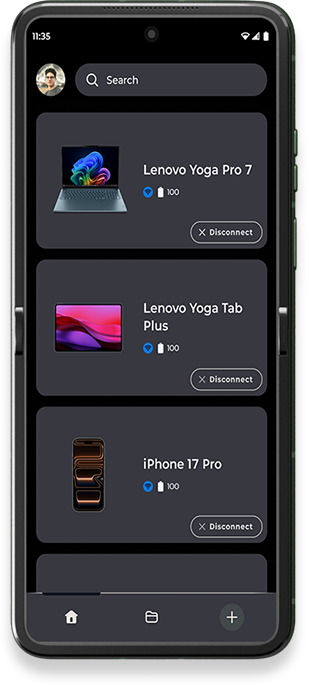
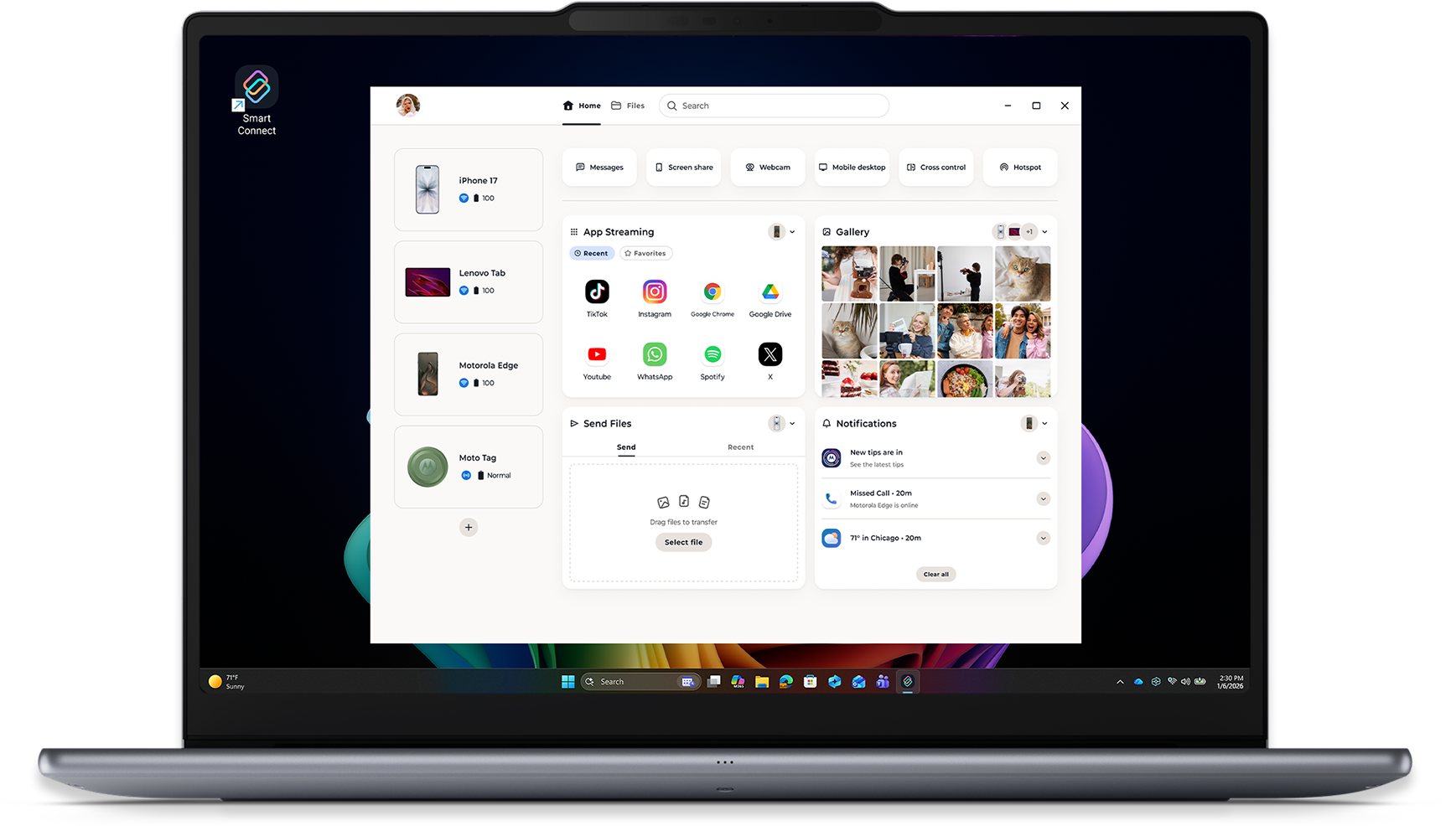
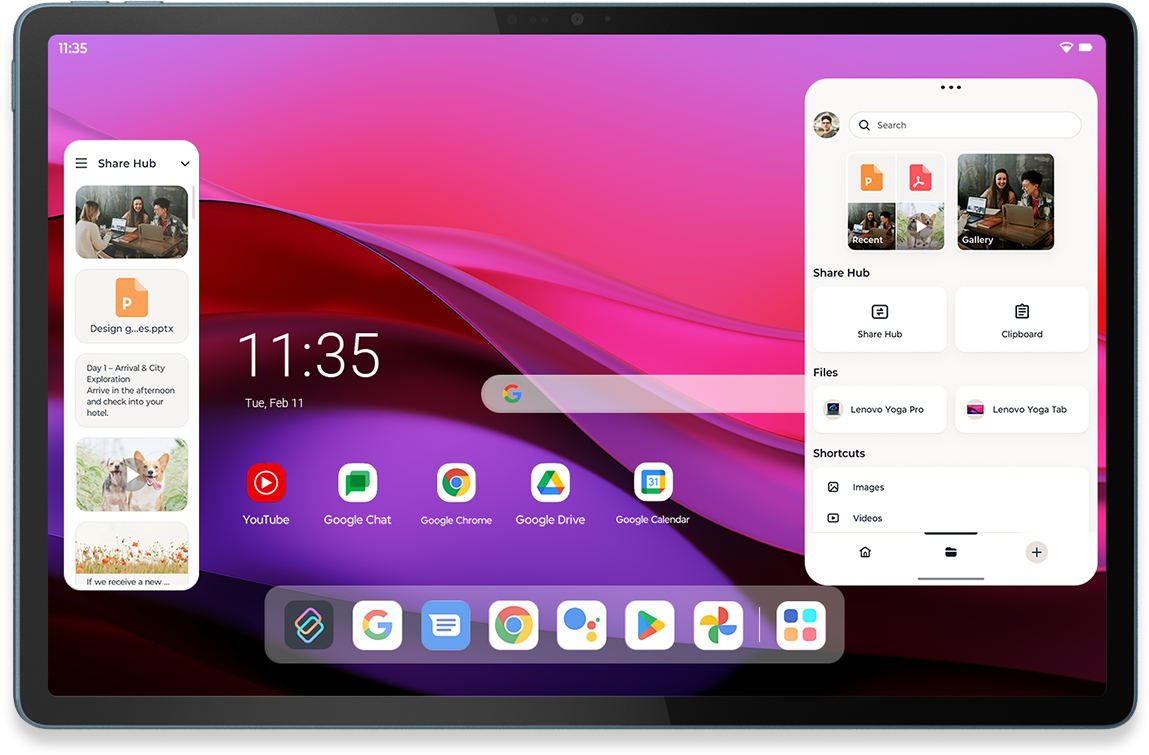

Experience Smart Connect
Download Today



★★★★★
This app brings screen sharing to a whole new level! I found the UI very impressive... Even better was being able to use the apps without them running in the background on my phone!

User review from Google Play
March 2025
★★★★★
Support IOS, awesome! Continuously develop this APP!

User review from App Store
February 2026
★★★★★
This app works great on my non-Lenovo desktop ... Overall a good app and I would recommend it.

User review from Microsoft Store
About a year ago
★★★★★
I am writing this review using my Asus laptop's keyboard on my Lenovo M11 tablet ... You won't regret it...
User review from Google Play
April 2025
★★★★★
muy buena app, hace que el uso de los productos de lenovo merezaca la pena sobre las otras marcas
User review from Google Play
January 2025
★★★★★
아이폰을 컴퓨터에 가볍게 터치하기만 하면 휴대폰에 있는 사진이 바로 화면에 나타나요! 사진을 찍은 후 바로 컴퓨터에서 편집할 수 있어서 정말 편리해요!
User review from App Store
March 2026
★★★★★
finally 😀 a phone 📱 to PC 🖥 that simply works, alot better than standard Bluetooth connection, 6stars
User review from Google Play
December 2025
★★★★★
I love this. I can even play my games on my laptop. It is so helpful itscrazy
User review from Microsoft Store
2 years ago
★★★★★
Ich möchte die Funktion nicht mehr missen, bei der man das Motorola einfach dreht und die Fotos sofort auf dem Computer erscheinen. Wer ein Motorola nutzt, sollte diese App wirklich ausprobieren. Sie hat viele praktische Funktionen.
User review from Google Play
March 2026
★★★★★
Great app! Desktop mode needs more work but other features like casting o playing videos just work so well
User review from App Store
December 2025
★★★★★
Nice app. I don't need a SIM in my Tablet to share documents to my phone. I give it four stars because it's fairly good 👍🏼
User review from Google Play
March 2026
Download Today
Clipboard
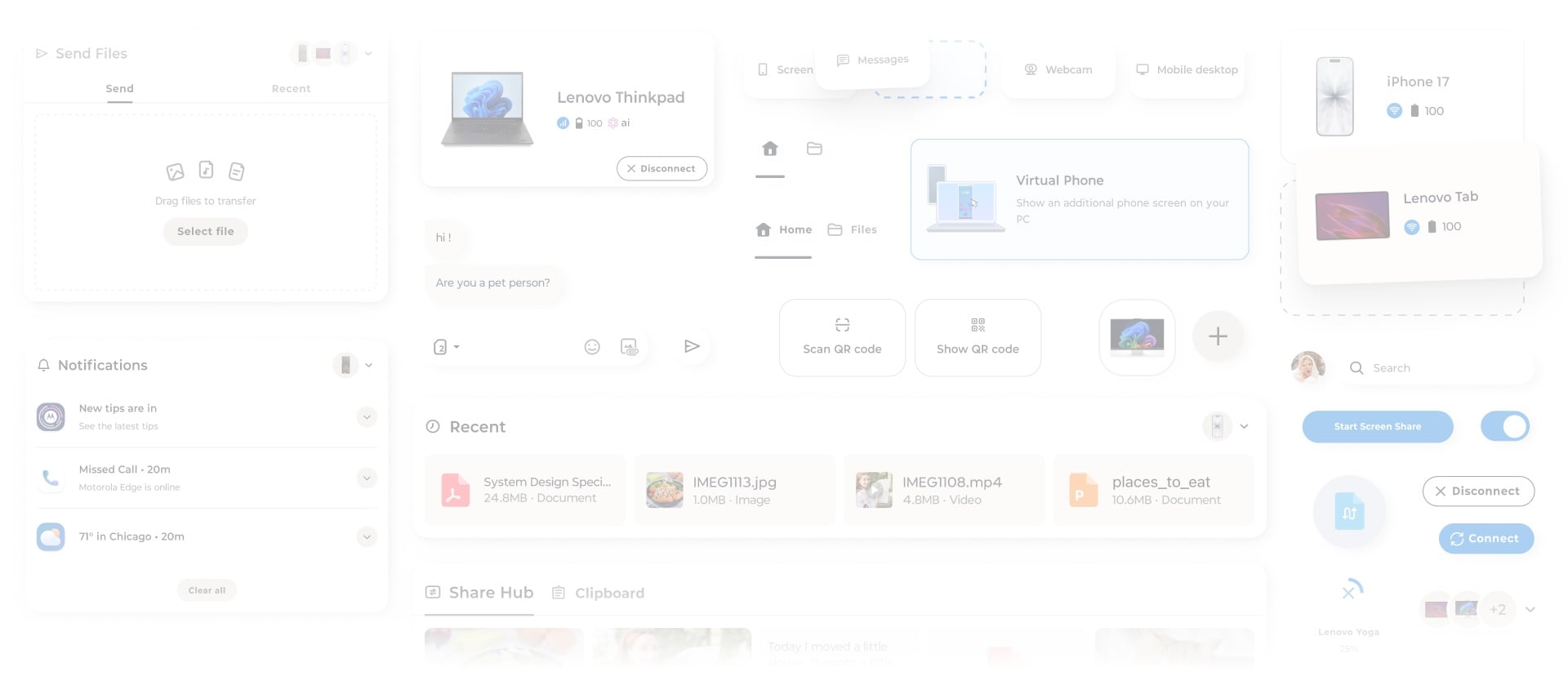
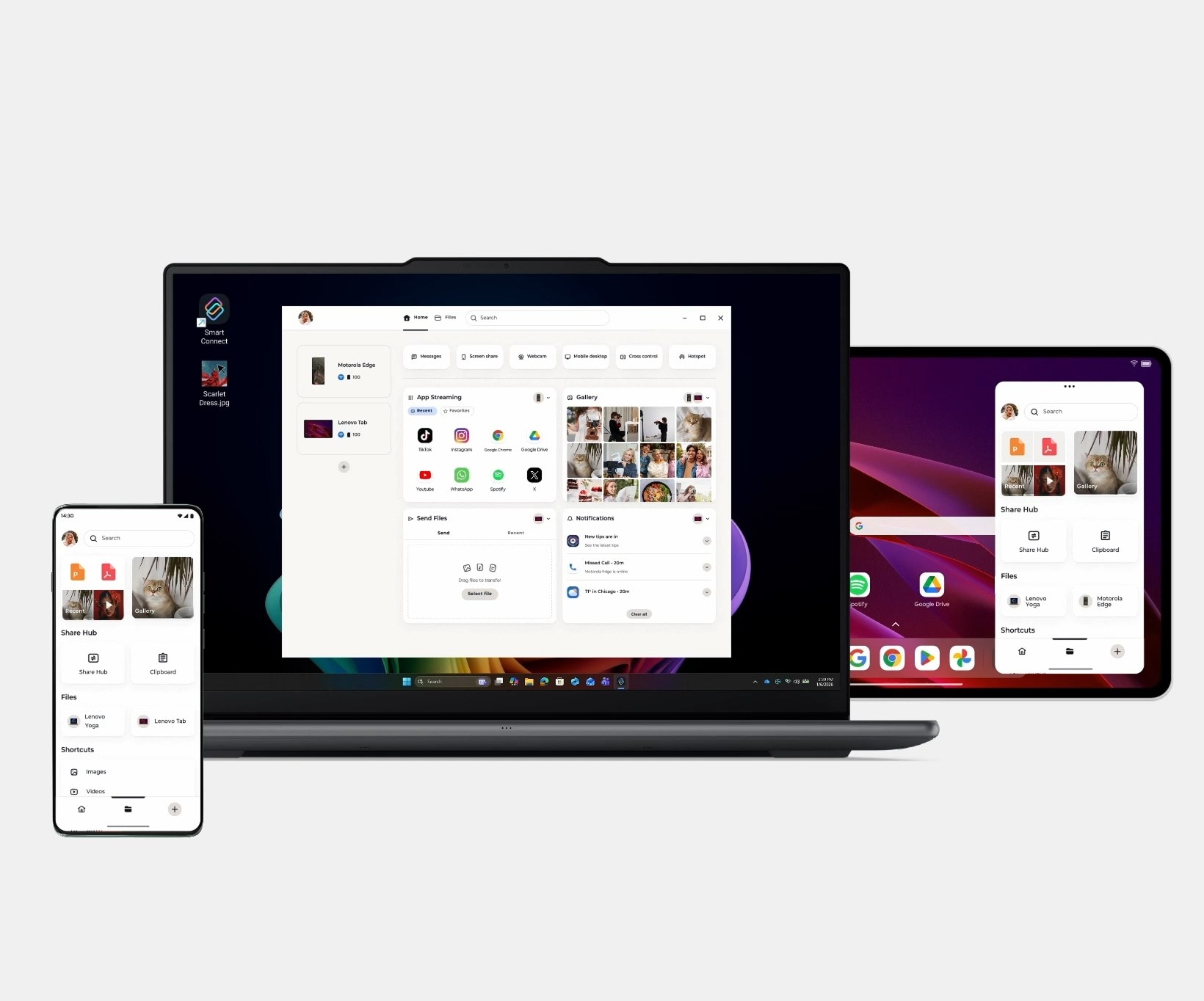
Copy text, images, or links on one device and paste them on another in an instant. Whether you're copying from your phone to your tablet or from your PC to your phone, no more sending emails to yourself.
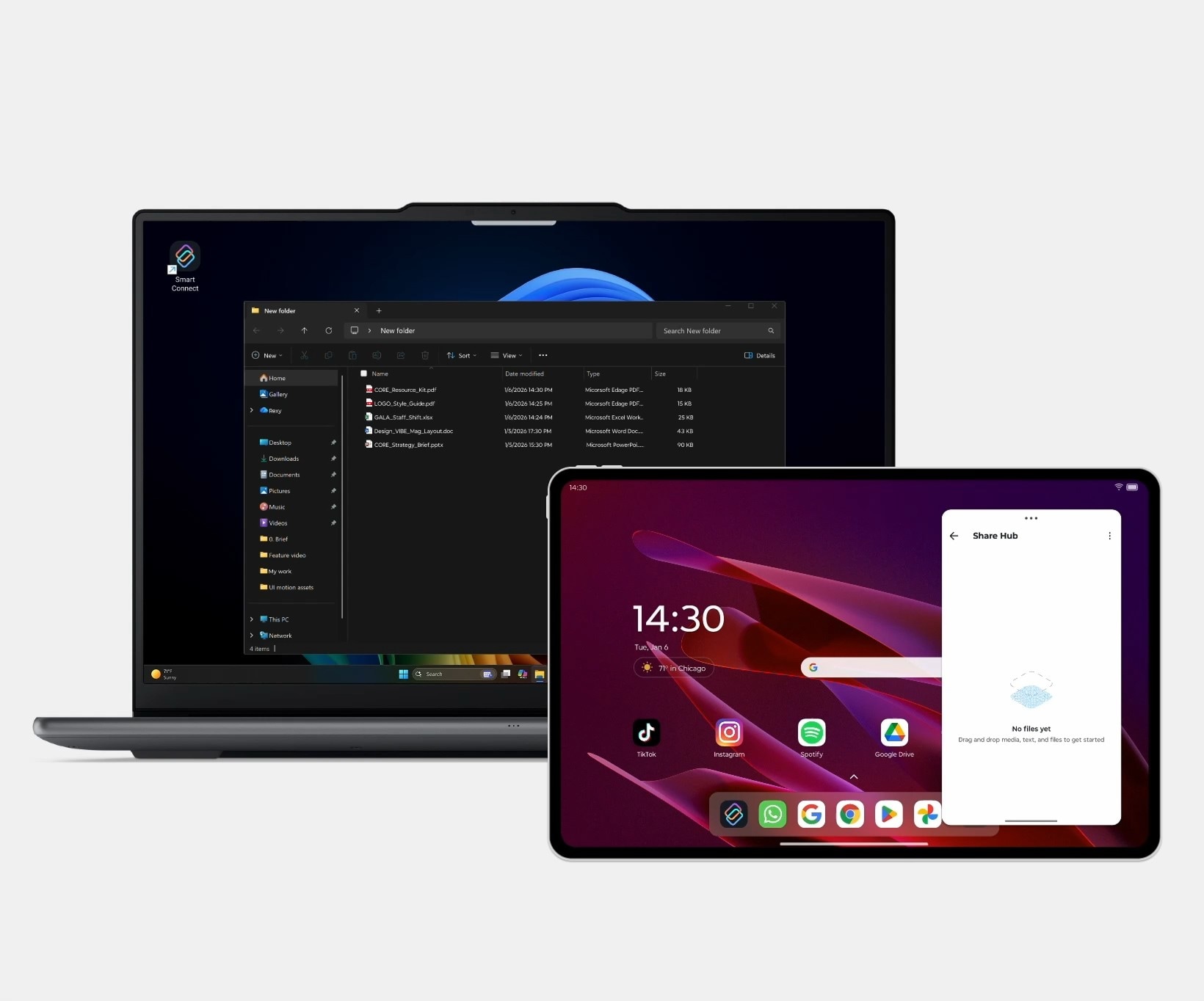
Share Hub
Drag and drop docs, photos, videos and more between your PC, phone, and tablet instantly. No size limits, no quality loss. No need for cables, emails, or third-party apps.
Synced Files & Photos
See what's on every connected device without switching screens. Browse your photos or documents from any connected device. Open what you need, drag it into your workspace, or send it to another screen in an instant.
Cloud Connectivity
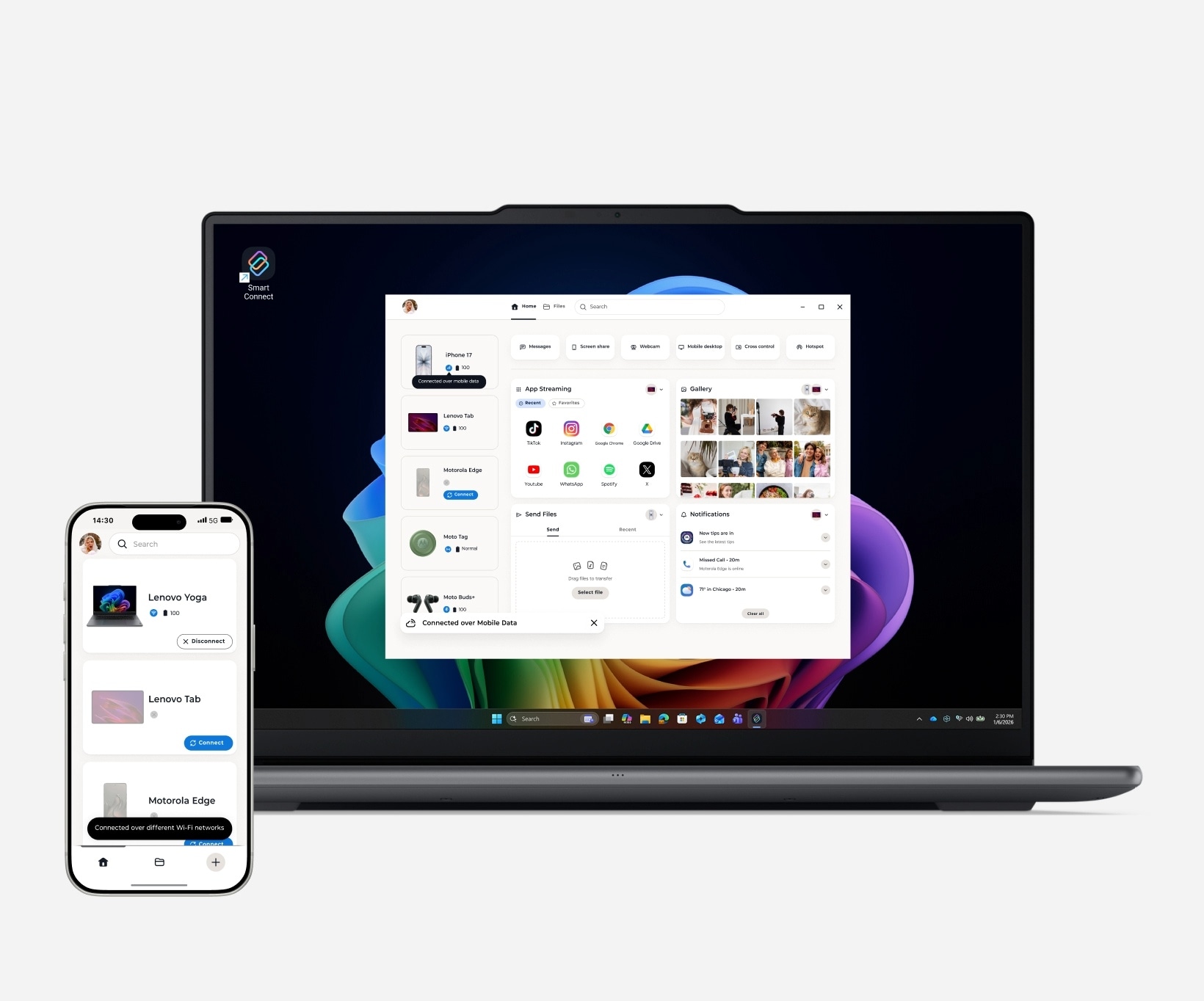
Your connection doesn't rely on Wi-Fi. Check files, send photos, and keep your phone and PC working together through mobile data.
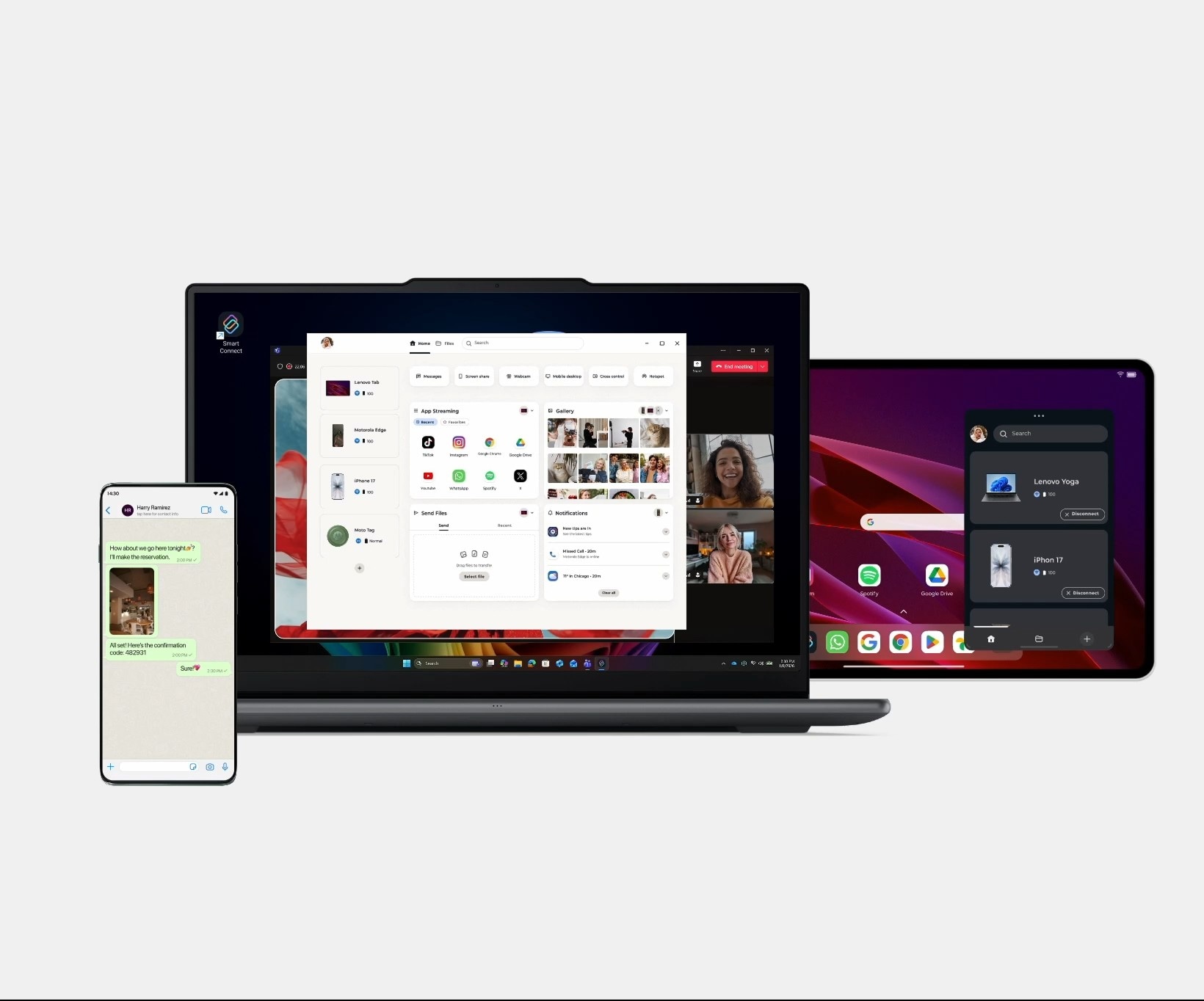
App Streaming
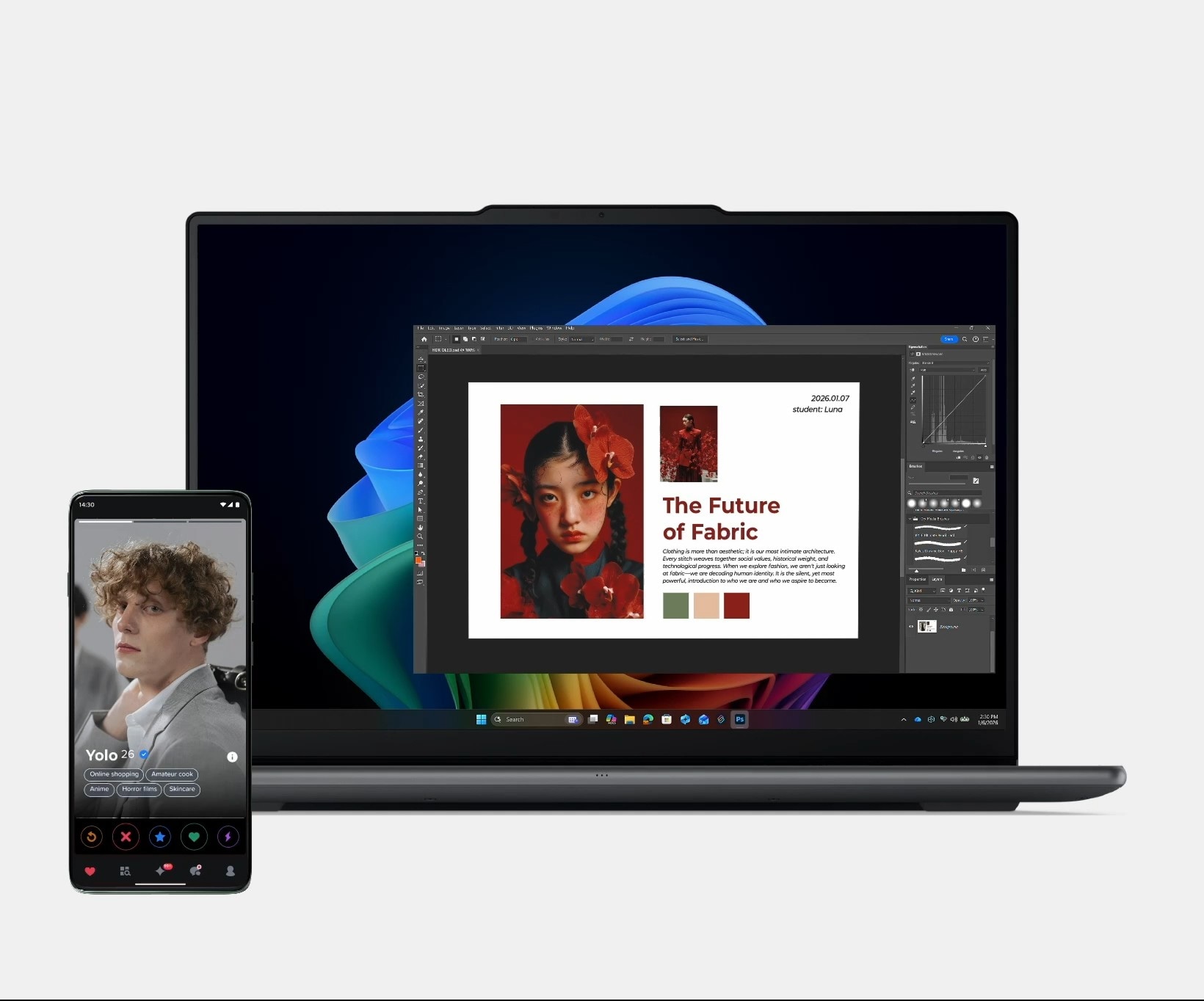
Open Android apps on your PC or Smart TV to get more space and flexibility. Swipe up from your Moto phone or long press from a Lenovo tablet and keep moving on a bigger screen.
Webcam
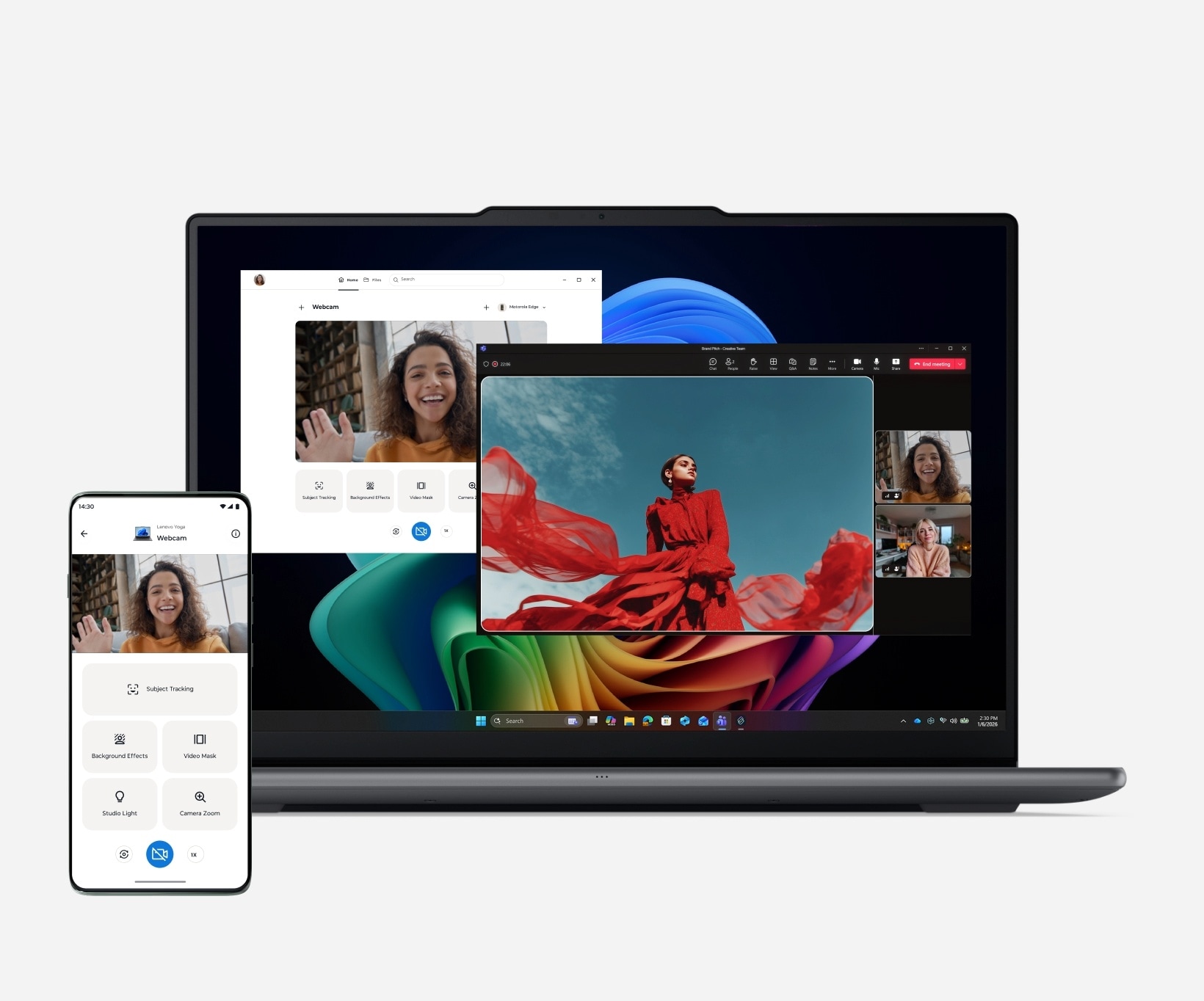
Turn phone or tablet into a pro-level webcam, just select 'Smart Connect Webcam' on your video app. Sharper video, better angles and total freedom to move your setup your way.
Cross Control
Expand your workspace and control everything with one set of inputs. Extend or mirror PC screen to your Lenovo tablet for easy multitasking, while using your mouse and keyboard to navigate PC, tablet, and phone as if it's all one device.
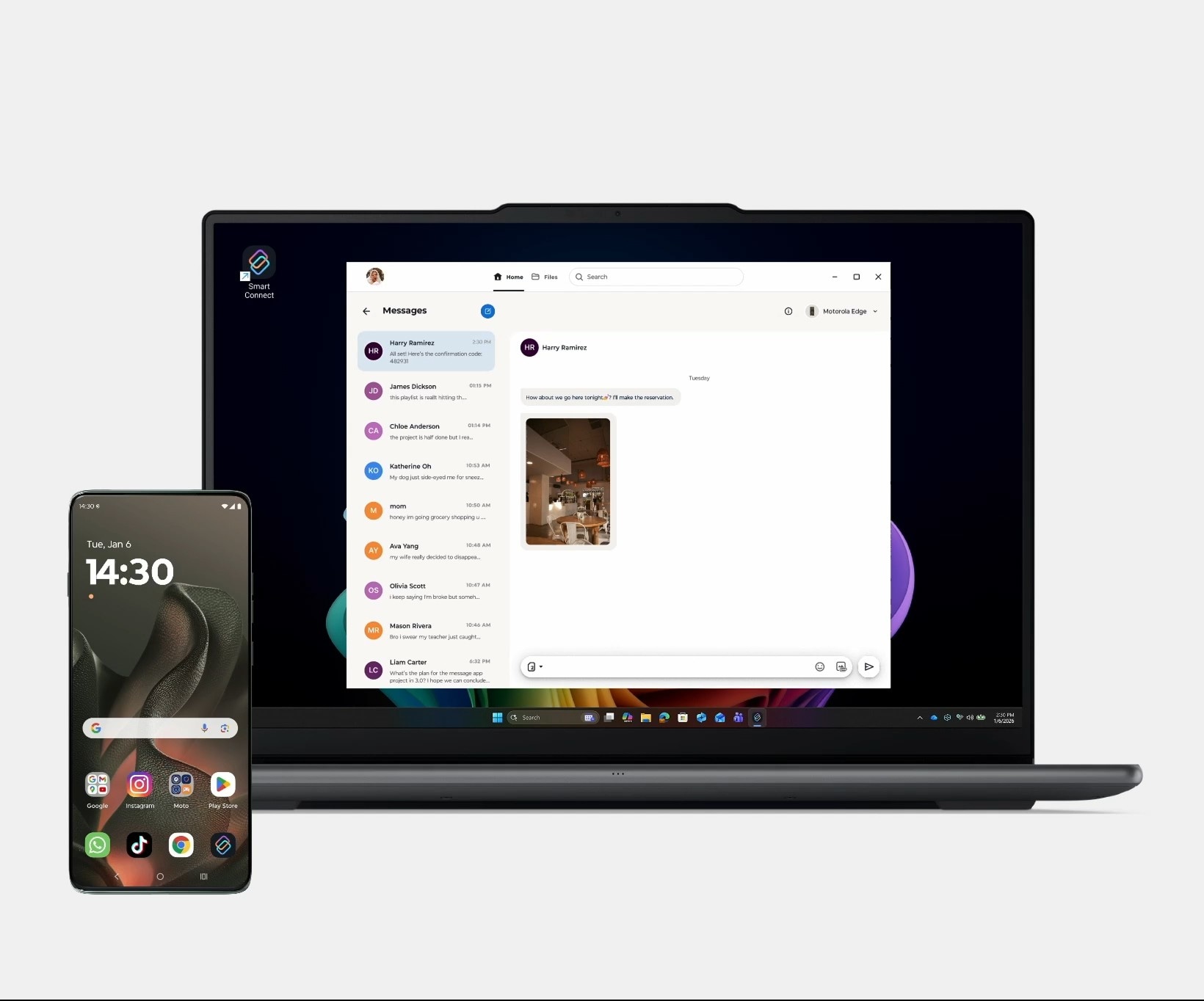
Messages
SMS lands on your PC from your phone the moment your friend clicks send. Check, reply or drop in a photo and emojis. And yeah, don't forget to copy that OTP straight from your PC. Smooth, seamless, zero breaks in flow.
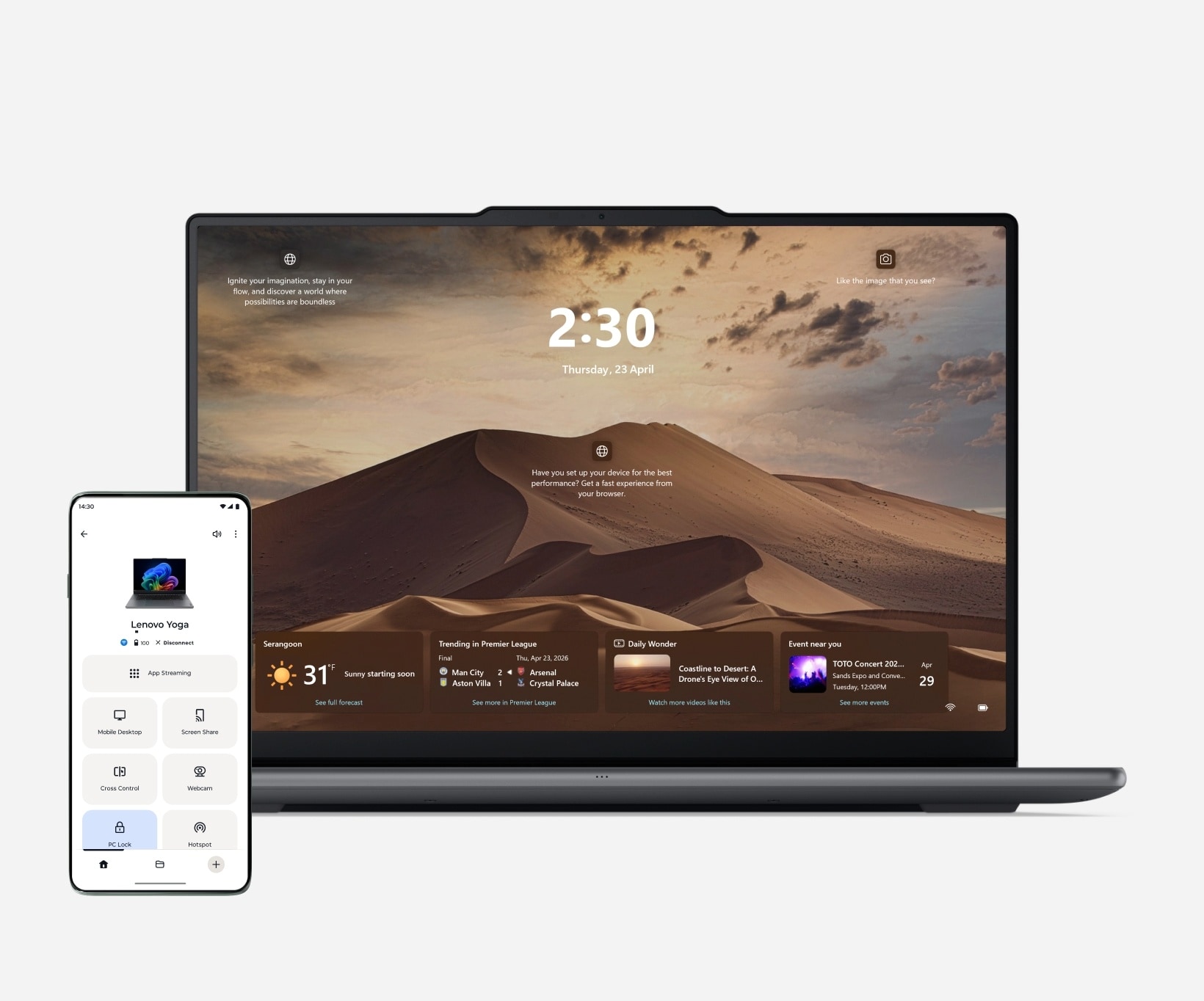
PC Lock
Step away without leaving your PC wide open. Lock it remotely in seconds using your connected Android tablet or phone.
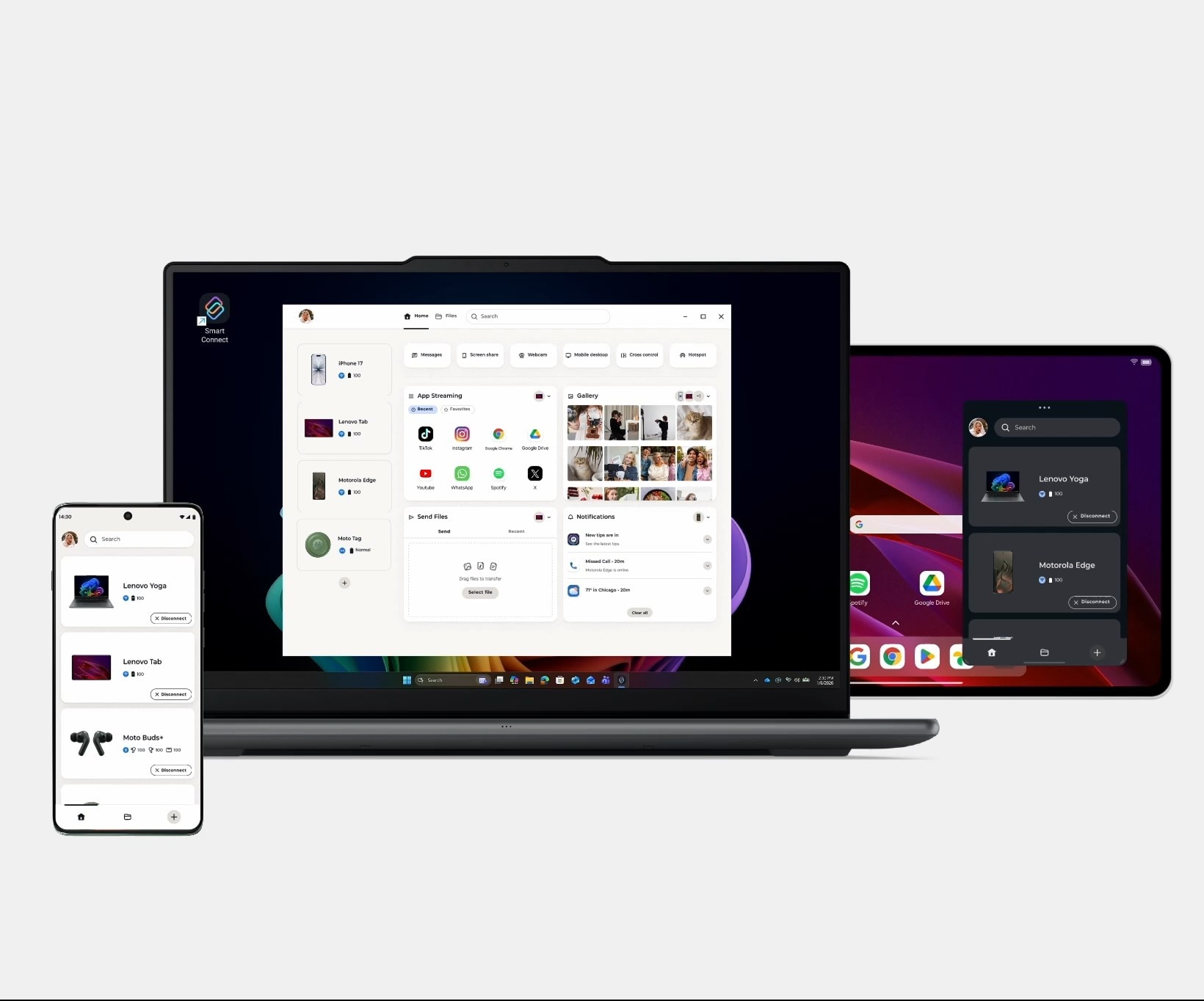
New Design
A reimagined design gives you a dashboard that brings all your go-to tools together in one spot. Move widgets around however you like. It's simple, fun, and made for your style.
Tap to Launch
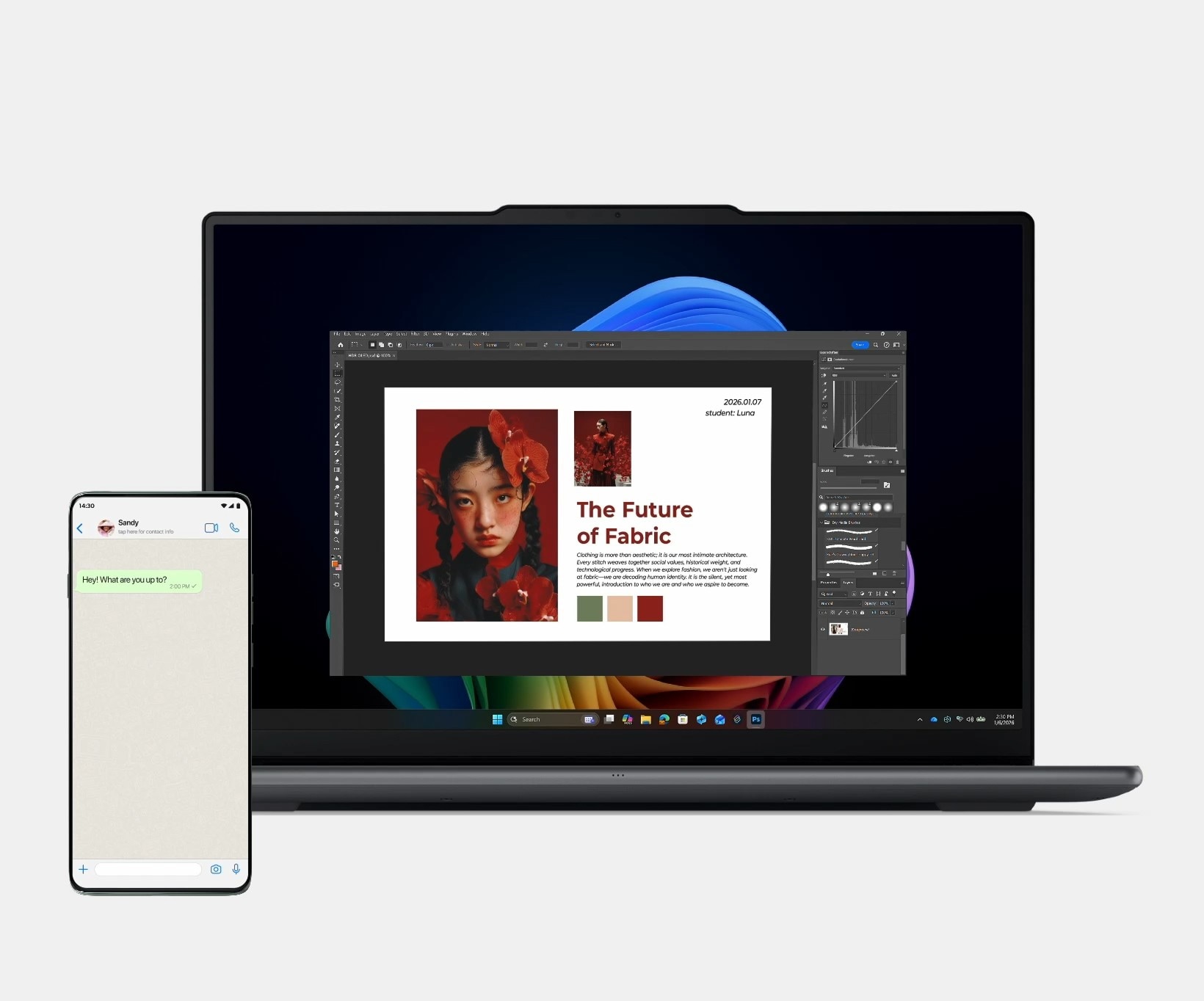
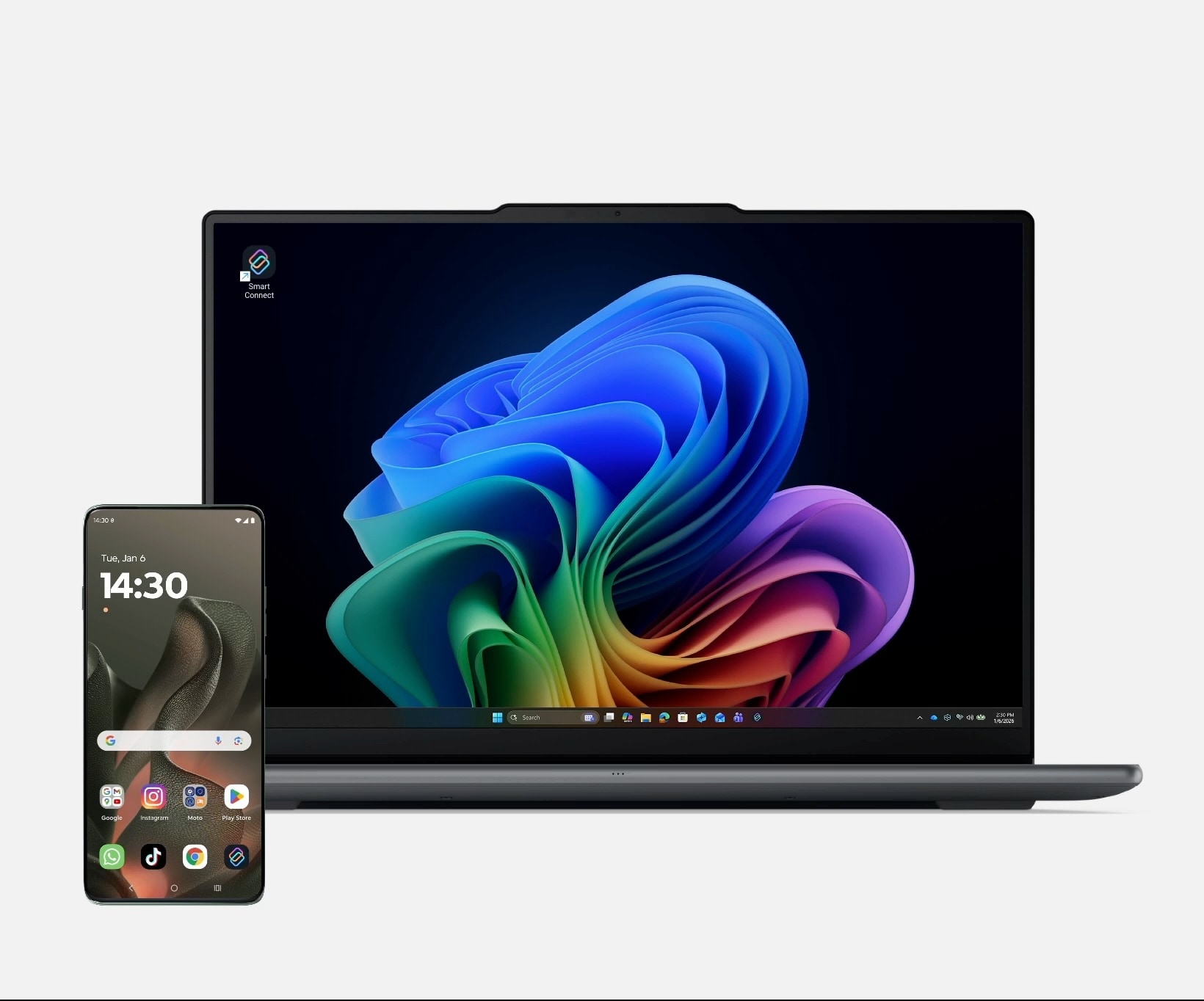
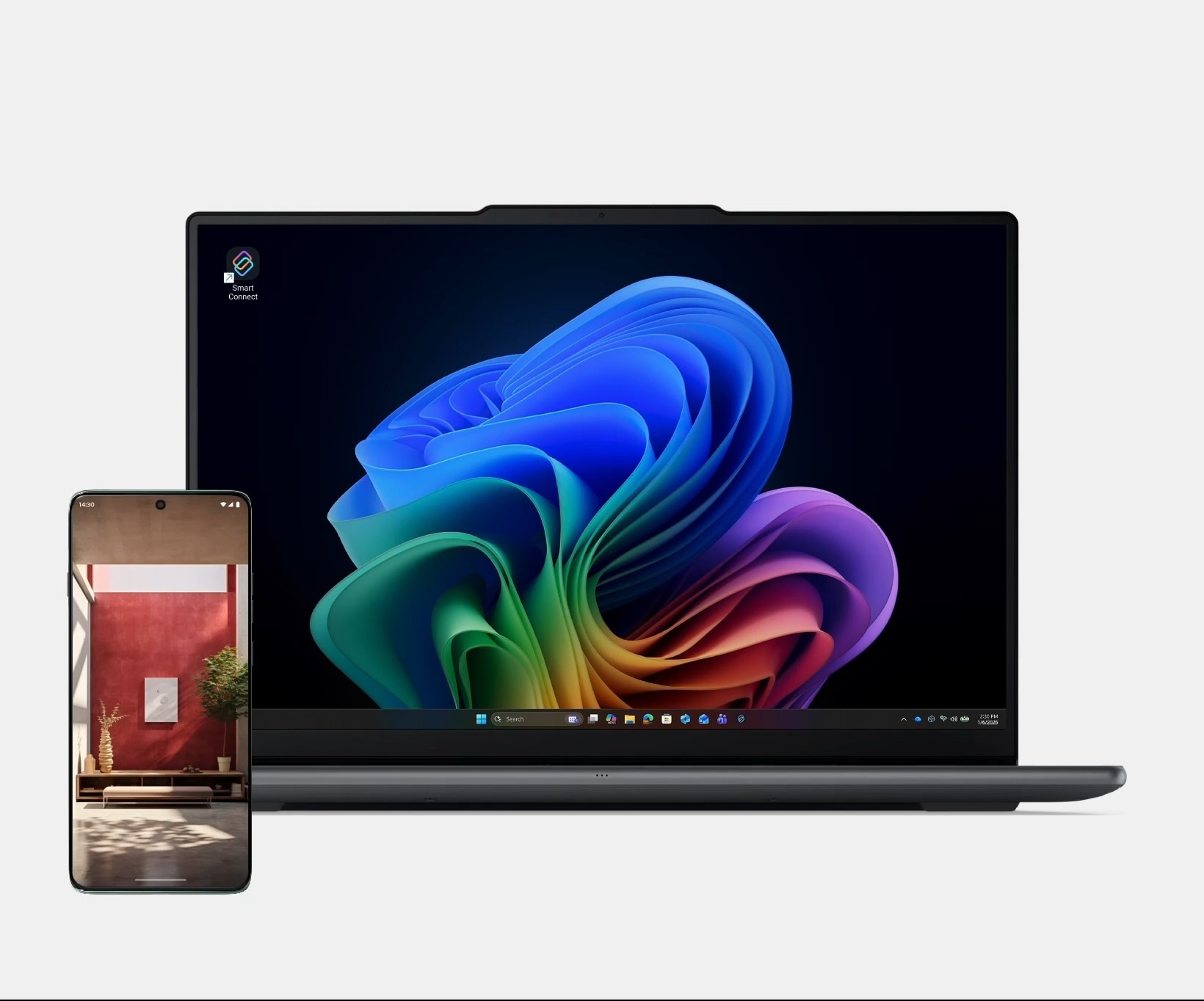
Tap your Android or iOS phone to your Lenovo Aura Edition PC for an instant connection. From there, you can drag and drop photos and videos directly for quick editing or sharing.
Turn to Share
Flip Moto phone 180° to drop a photo straight onto Lenovo PC home screen. No clicks, no sending, just instant sharing that keeps you in the flow.


Ask. Answered.
1. What device does smart connect work on?
Smart Connect works across phones, tablets, and PCs, supporting iOS, Android, and Windows devices.
Supported devices include:
- Android phones and tablets running Android 12 or later
- iPhones running iOS 15 or later
- Windows PCs running Windows 10 or later
*Some Smart Connect features are available only on Lenovo or Motorola devices. Feature availability may also vary depending on hardware capabilities.
2. How to setup Smart Connect?
Step 1: Sign up / in
Sign in with the same Lenovo ID or Moto account on all devices.
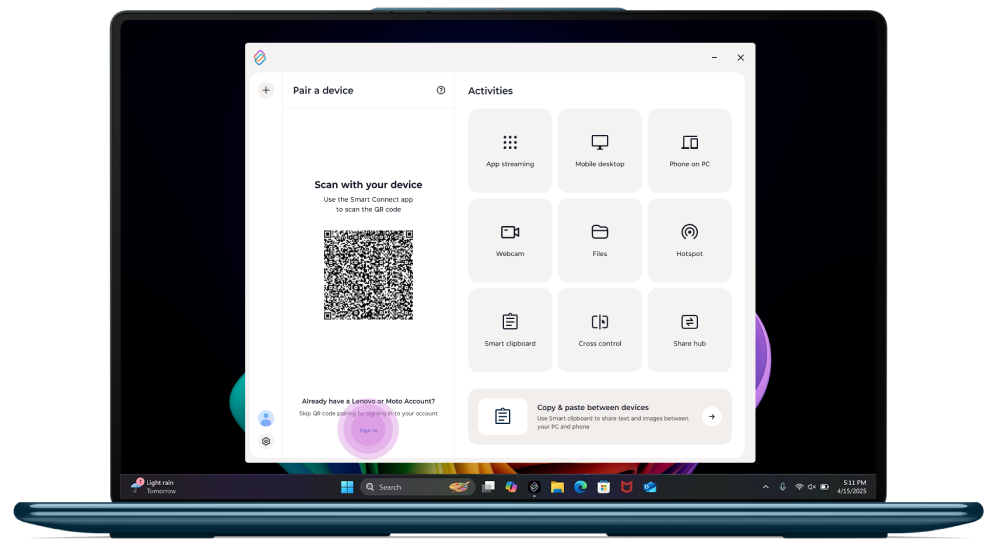
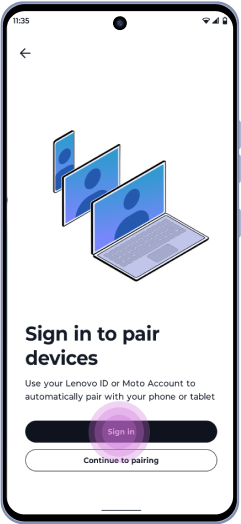
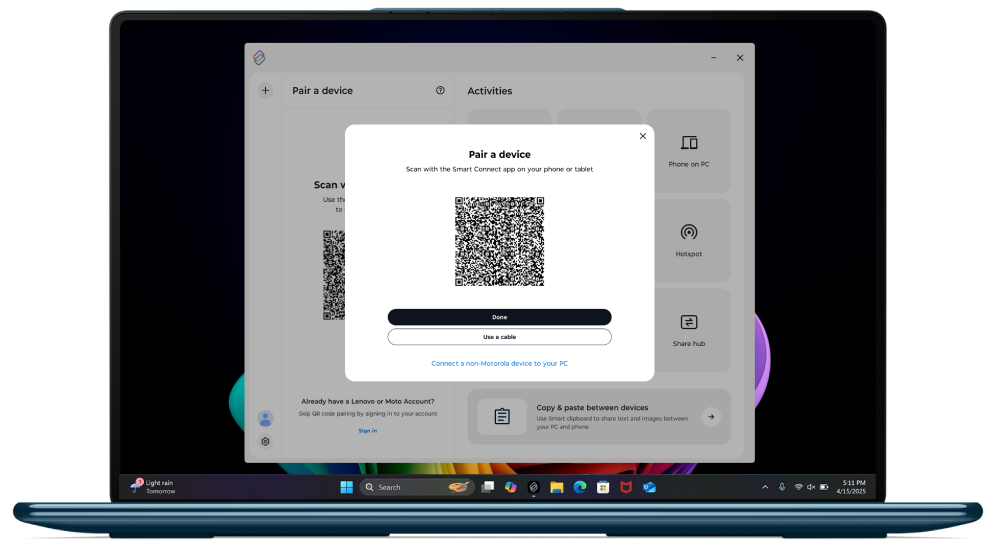
Step 2: Pair your devices
On PC:
Scan the QR code with your Android devices.
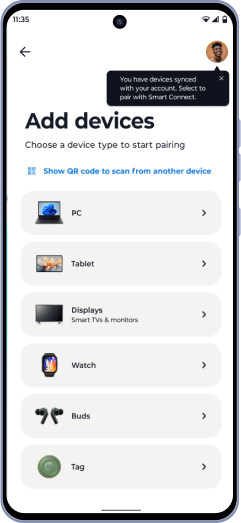
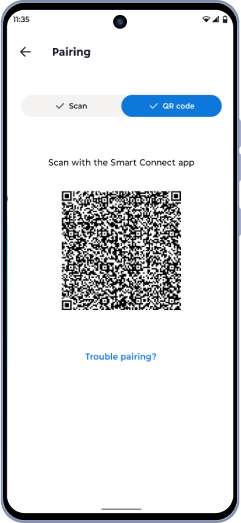
On Android tablet or phone:
- Choose a device type to start pairing;
- Scan other device’s QR code, or let other devices scan yours.
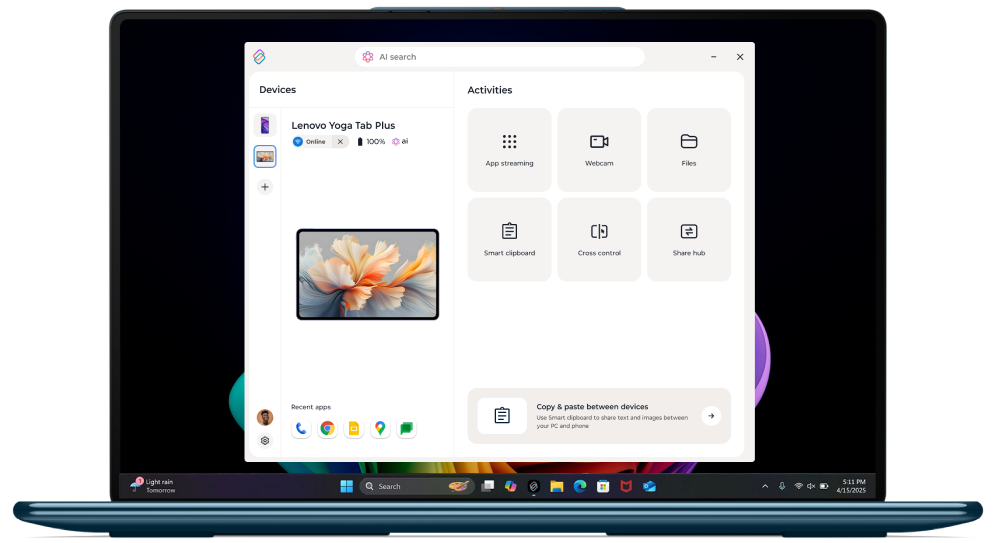
Enjoy! Paired devices are saved to your Lenovo ID – no need to re-pair next time.
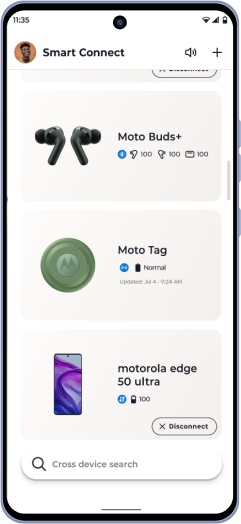
3. How to pair a Smart TV?
You may connect your phone to the TV in two ways:
If your TV supportsMiracast orChromecast, Smart Connect will auto-detect it.


Just tap the device name to start your streaming session.
Miracast offers the full Smart Connect experience with Experience Hub. No local Wi-Fi required.
Chromecast supports mirroring only and requires both your phone and TV to be on the same Wi-Fi network.
Plug your phone directly into your TV using a USB-C cable or USB-C to HDMI adapter. HDMI provides reduced latency and smoother performance, ideal for presentations and video playback.
4. What's the connection modes of Smart Connect?
Smart Connect connects devices using different connection methods. Feature availability may vary depending on the connection type.
Connection methods include:
- Wi-Fi Access Point (Wi-Fi AP)
Connects devices through a local wireless network.
Supported across all Smart Connect–compatible devices. - Wi-Fi Direct
Creates a direct wireless connection between devices without a local network.
Not supported on iOS devices. - USB cable
Connects devices using a physical wired connection.
Not supported on iOS or third-party Android devices. - Cloud connection
Connects devices when they are on different Wi-Fi networks or using mobile data.
Available on Windows PCs, iOS and Android, with limited features.
| Scenario | File transfer behavior |
|---|---|
| Devices on different Wi-Fi networks or using mobile data | Up to 500MB per day |
| Single file larger than 200MB | Requires devices to be on the same Wi-Fi network |
5. What data does Smart Connect store? Will it share any of my data for other purposes?
Smart Connect uses limited device information to enable connectivity and does not process or store your personal content. Device connections are encrypted, and data is not shared with third parties. You can manage your privacy settings at any time within Smart Connect.
6. What are the differences between Android and iPhone when using Messages in Smart Connect?
Messaging features in Smart Connect vary between Android and iPhone due to platform limitations.
Key differences include:
| Feature | Android phone | iPhone |
|---|---|---|
| SIM support | Supports multiple SIM cards | Support single SIM |
| Message recipients | Phone numbers | Phone numbers and email addresses |
| Add contacts in Messages | Contact Name or number | Name, number, or email |
| Message history on PC | Past 10 days | Most recent 10 messages |
| Send images from PC | Supported | Not supported |
| Drag-and-drop images | Supported | Not supported |
| Group messages | Supported | Shown as individual messages |
7. What file types are supported for transfer? Is there a size limit?
Smart Connect supports transferring files of all types between PCs, tablets, and phones. There is no specific file size limit set by Smart Connect. File transfers are limited only by the available storage space on your devices. On some older devices, very large files may not be supported due to storage format limitations.
8. Can I delete and recover photos in Gallery?
When you delete a photo from Gallery, the original file is also deleted from the source device.
The photo can be recovered only if the source device supports a Recently Deleted folder and the photo is still available there. If the source device does not have a Recently Deleted feature, the photo is permanently deleted.
Please delete photos with caution.
9. What functions are supported between iPhone and Android/Windows devices?
Available Smart Connect features depend on the devices you connect:
| Cross-Device Feature | iPhone ↔ Windows PC | iPhone ↔ Android Phone |
|---|---|---|
| Tap to Launch | Supported ( Aura Edition PC required ) | Not supported |
| Messages | Supported | Not supported |
| File Transfer | Supported | Supported |
10. How do I share Live Photos?
Live Photo sharing is currently available on iPhone only.
By default, Live Photos are shared as static images. You can change this to video format in settings.
To enable Live Photo sharing as video:
- Open Smart Connect on your iPhone.
- Go to Settings.
- Select Send Files.
- Choose Video format for sharing Live Photos.
11. What devices support Tap to Launch and Turn to Share?
Tap to Launch is supported on Lenovo Aura Edition PCs and works with Motorola phones and iPhones.
Turn to Share is supported on Lenovo PCs and other Windows PCs, and works with Motorola phones.
Both features do not support tablets.
12. What can I do on TV with Smart Connect?
Once connected, you can:
- Control your TV with your phone using trackpad mode and air gestures
- Stream or cast videos, launch apps, or present content
- Access Experience Hub to select actions directly from your TV
13. What Smart Connect features are available on non-Lenovo and non-Motorola Android devices?
Smart Connect provides a limited set of features on non-Lenovo and non-Motorola Android devices.
Advanced features such as device mirroring, mobile desktop, and app streaming are available only on supported Lenovo and Motorola devices.
Please refer to the table below for feature availability by device type.
| SC Features | 3rd Party Phone | 3rd Party Tablet | iPhone |
|---|---|---|---|
| Display (Miracast) |  | | |
| Webcam Advanced | | | |
| Mobile Desktop | | | |
| Virtual Phone | | | |
| Phone/Tablet on PC (mirror) | | | |
| SC on Meta Quest | | | |
| Hotspot | | | |
| App Streaming | | | |
| Cross Control | | | |
| Ecosystem Hub (Moto Things) |  | | |
| Cross Device Search (non-AI) | | | |
| Smart Clipboard | (Picture only) | (Picture only) | |
| Notifications | | | |
| Share Hub | | | |
| Lock PC | | | |
| Files Explorer | | | (SC3.2) |
| Webcam Lite | | | |
| Extend PC Screen | | | |
| Messages on PC | | (Only LTE&5G) | (Only Bluetooth) |
| Tap to launch | | | (SC3.2) |
| Cloud Connectivity | | | |
| Turn To Share | | | |
| File Transfer | | | |
| Gallery Viewer on PC | | | |
14. Are there feature limitations based on Lenovo and Motorola device performance?
Yes. Some Smart Connect features may be limited depending on the device configuration.
Feature availability varies primarily based on the device’s memory and overall performance tier. Devices with higher memory configurations support more advanced Smart Connect features, while devices with lower configurations may have limited functionality.
Please refer to the table below for detailed feature availability by device category.
| SC Features | Moto 6GB or more (SC Preloaded) | Moto (4GB and below) | Lenovo tablet 6GB or more (SC Preloaded) | Lenovo tablet Less than 6GB (SC Preloaded) |
|---|---|---|---|---|
| Display (Miracast) | | | | |
| Webcam Advanced | | | | |
| Mobile Desktop | | | | |
| Virtual Phone | | | | |
| Phone/Tablet on PC (mirror) | | | | |
| SC on Meta Quest | | | | |
| Hotspot | | | | |
| App Streaming | | | | |
| Cross Control | | | | |
| Ecosystem Hub (Moto Things) | | | | |
| Cross Device Search (non-AI) | | | | |
| Smart Clipboard | | | | |
| Notifications | | | | |
| Share Hub | | | | |
| Lock PC | | | | |
| Files Explorer | | | | |
| Webcam Lite | | | | |
| Extend PC Screen | | | | |
| Messages on PC | | | (Only LTE&5G) | (Only LTE&5G) |
| Tap to launch | | | | |
| Cloud Connectivity | | | | |
| Turn To Share | (Android 16+) | | | |
| File Transfer | | | | |
| Gallery Viewer on PC | | | | |


