Free Shipping
Lenovo offers free standard shipping and easy returns on nearly all products.


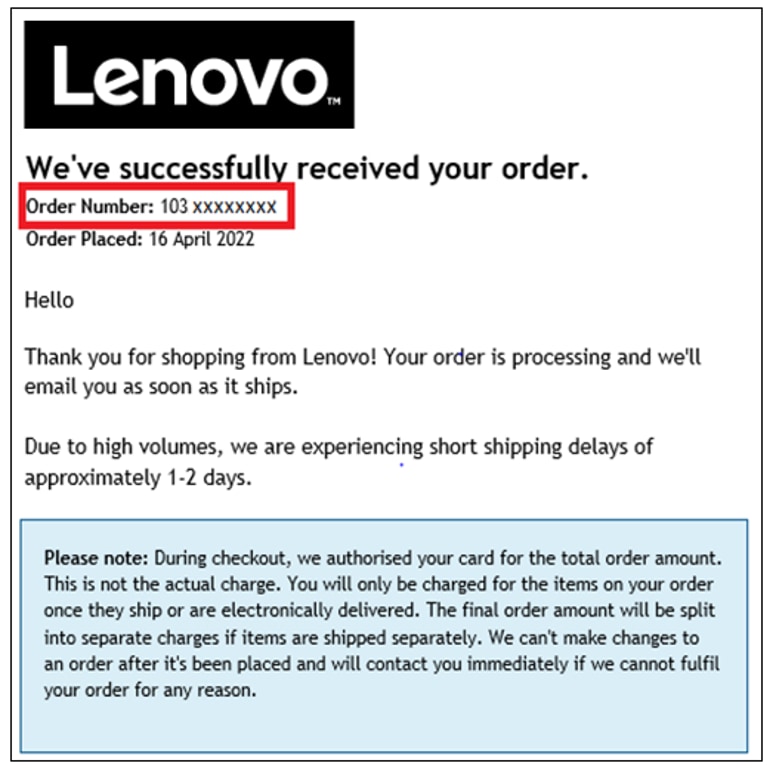
How do I find my order number ?
Shortly after placing your order you will receive an order confirmation email containing your order number. Your order number can be located in the Top Left of this Email.
Shipping and Delivery
Lenovo offers free standard shipping and easy returns on all products. Shipping times listed are estimates based on production time and product availability. An estimated ship date will be available in your customer account after your order is placed. Ship dates do not include delivery times. Delivery times vary depending on shipping point location. Once your order has shipped you will receive a shipping confirmation email, which will include your tracking number.
Lenovo is not responsible for delays outside of our immediate control, including delays related to order processing, credit issues, inclement weather, or unexpected increase in demand.
We are unable to ship orders to PO boxes, hotels, freight forwarding or consolidation centers, 3rd party hubs, packing stations, collection points, international exporters, any address outside of the United Kingdom or these areas: Offshore territories – Jersey, Guernsey, Gibraltar, Channel Islands, Isle of Man
We are working with several partners to get the product to you as fast as possible so if you order multiple products, they might be delivered separately and by different carriers.
Can I change the delivery address of my order?
Unfortunately, we cannot change your shipping address after you submit your order. Once your order is submitted, your details are immediately sent to our warehouse and our system can no longer retrieve or change them.
If your shipment is not successfully delivered it will be returned to the warehouse and you will receive a full refund.
I requested a cancellation but my order has shipped.
If you order could not be cancelled and is shipped, please refuse to take delivery. You will be refunded once your order is returned to our warehouse.
What happens, if the delivery attempt failed?
Parcel will be returned to the warehouse and a refund will be initiated.
Shipping addresses cannot be changed.
Deliveries take place Mon-Fri, during usual business hours.
Can I have a specific time for delivery?
Unfortunately, we are unable to provide specific delivery times. Our carrier will attempt to deliver your products from Monday to Friday during business hours. If delivery attempts are unsuccessful, the product will be returned to our warehouse and you will receive a full refund.
Items missing?
If your order does not contain certain items that you purchased, please contact our Customer Service team
What do I do if my product arrived but is not functioning properly and/or will not power on?
Please contact our Technical Support team. You can use online self-support .
Damaged product or shipping box?
If your order contains damaged items upon arrival, please contact our Customer Service team
What do I do if my package shows delivered but I did not receive it?
Please contact our Customer Service team
Need help activating your Microsoft Office Products?
For assistance activating and/or troubleshooting your Office product(s) please click here
The website stated my product would ship in 5-7 business days when I ordered it, but order tracking page is showing that it will ship at a later date. Is there something wrong?
Shipping times listed are estimates based on production time and product availability. An estimated ship date will be posted in your customer account after your order is placed. If you chose any customizations when placing your order, your machine will be custom manufactured to meet the specifications you chose and estimated ship dates are subject to change. Once your order ships, your customer account will reflect that information and provide your tracking number. You will also receive a shipping confirmation email.
My shipping date changed, where can I find more information?
When placing your order all shipping dates that have been provided are estimated. While we make every effort to ship products according to the timelines provided, occasionally shipping can be delayed.
Any changes to shipping times will be communicated to you via email after your order has been placed. the most up to date shipping information can be found in your customer account .
Warranty Support
For warranty registration related questions, please click here .
I am thinking of cancelling my order
You can cancel your order through your customer account or by contacting our Customer Service Team . Lenovo cannot guarantee cancellation once an order has been placed as it might be already in the pre-shipment phase or has already shipped. However you can always refuse the shipment and once it is returned to our warehouse, a refund will be initiated. After submitting a cancellation request, you will be notified via e-mail whether the order was cancelled successfully or has been shipped.
My package is damaged
With your signature, you are confirming, that the parcel was in perfect condition. If you see the damage straight away, we suggest refusing the parcel and contact our Customer Service team to initiate a refund or replacement.
Lenovo.com return and replacement policy
We offer easy returns including no restocking fee, no shipping and handling fee if you use our return process.
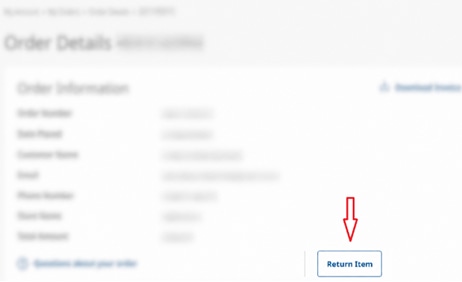
You can request a return or replacement through your customer account or by contacting our Customer Service Team within 14 days after delivery, providing the return reason, your order number, product number and the serial number of the device (for PCs, docking stations and adapters).
In case your product has a software issue, please consider contacting our Technical Support first. They might be able to quickly fix the issue over the phone by updating the bios and drivers.
Products purchased from 01/11/25 can be returned by 31/01/2026 thanks to our extended return period.
Past 14 days return policy
If a defect is discovered after 14 days please contact the Technical Support Team to arrange a repair.
Return Process – Next Steps
- In case the device's BIOS was locked by you via password, please unlock it.
- Any authorized return must include the product and all accessories in their original packaging, along with the invoice.
- You will receive an email from our return provider, Cycleon/Rebound ( no-reply@cycleon.com ), in no more than 3 working days. If it does not arrive, please check your junk/spam email folders.
- We provide two options: drop-off or pick-up. If the total weight of your items exceeds a specific value, only the pick-up option is available. *The default option is drop-off and therefore the initial email will include labels for drop-off.
-
In case you prefer pick-up, kindly follow the instruction in the email from Cycleon/Rebound, you will be provided with new labels for pick-up.
Note that Cycleon/Rebound is not the carrier. The carrier’s name is located on your shipping label, and it depends on your country and whether you select drop-off or pick-up.
Please make sure to print the correct labels. Don’t use the drop-off label for pick-up or vice versa. For any inquiries after your product(s) have been returned, please be sure to provide proof of collection.
Please always keep your copy of the signed label for further reference.
When will I get my refund?
Lenovo will initiate your refund within 7 working days of the original product arriving at our warehouse in the Netherlands.
*Please note, once the product is picked up or handed over to a drop-off point it can take up to 14 days to return the product.
After the refund has been initiated, the time it will take for your refund to reach you will depend on your payment method.
- Credit Card, PayPal, Debit Card:It can take up to 7 working days after the refund is initiated for the funds to show on your account.
- Wire transfer:You will be sent an email with a secure link requesting your bank account details for the refund. It can take up to 14 working days for the funds to be returned to your account.
- Financing or Klarna:your payment will be adjusted with the provider.
When will I get my replacement?
If your replacement request has been processed and the original product has been received back at the warehouse, a replacement order will be placed and you will receive a replacement order number. The replacement order should have the same estimated shipping lead time as your original order.
Your order may have been cancelled due to one of the following reasons:
- We are unable to ship orders to PO boxes, hotels, freight forwarding or consolidation centers, 3rd party hubs, packing stations, collection points, international exporters, or any address outside of United Kingdom
- Please ensure to enter your billing information exactly as it appears on the credit card billing statement
- Lenovo inventory, website or internal system error
- If you selected to pay by wire transfer and payment has not been made with 11 days of the order being placed then your order will automatically be cancelled. If payment has been made, we will send you an email with a link requesting your bank details, once these details have been returned to us we can refund the payment received
Please note that cancelled orders will not be shipped and any authorization holds will be reversed according to your financial institution policies.
Availability
Offers, prices, specifications and availability may change without notice. Lenovo will contact you and cancel your order if the product becomes unavailable or if there was a pricing or typographic error. Products advertised may be subject to limited availability, depending on inventory levels and demand. Lenovo strives to provide a reasonable quantity of products to accommodate estimated consumer demand.
Important information for resellers
Products and services purchased on Lenovo’s website, Lenovo.com, are for an end user customer’s own use and not for resale. Lenovo reserves the right to refuse or cancel orders if Lenovo suspects a customer is purchasing products and services for the purpose of reselling them.
We offer a wide range of connected devices - including accessories, warranties and spare parts. Several laptop and desktop series have an option to be configured based on your needs.
What kind of Lenovo PC is right for me?
Please contact Sales team so we may assist you in choosing a product that is perfect for you!
Unfortunately, no changes can be made once the order has been submitted.
- Please make sure that you are on the correct website for your local - it can be checked and switched in the bottom right corner of the web page.
- Please select a convenient shipping address that allows a delivery (more information here).
- The selected payment method can impact the order processing time (more information here).
- To include your VAT registration number on your order (more information here).
Once your order has been placed, you will receive an order confirmation email with login details to your customer account where you can look up your order and view the most up to date shipping information. As soon as an item is shipped, you can also download the invoice as a PDF.
We accept Visa®, MasterCard®, American Express®, Debit Cards, Wire Transfer ,PayPal , Amazon Pay, Klarna , Trustly & TreviPay(LenovoPro Only) .
Our servers encrypt all information submitted to them, so you can be confident that your credit card information will be kept safe and secure.
Wire Transfer
If you decide to pay via wire transfer, there are some specifications you might want to consider.
After order placement, you will receive an email containing our bank details. From this moment you have 11 days for the payment transfer.
The funds will show as debited from your account on the same day that payment has been made, but it can take between 2 to 3 working days for it to show in our system. Your order will then go into processing and you will receive the order confirmation email containing your order details and customer account details.
Please note, in case a refund is required for your wire transfer order, we will have to request your bank details, as they are not provided to us with the payment. The refund process itself can take up to 14 business days, depending on the involved bank.
Credit Card
During checkout, Lenovo will request a pre-authorization for the total order amount from your credit card company, this is not an actual charge. Once your order ships, your credit card will be charged.
Here is some information that might be helpful for you during the order process:
Please ensure you enter your billing address as it appears on your credit card to avoid cancellation of your order. This way it passes our credit card verification process.
There are many possible reasons for a credit card not being accepted, the most common reasons are:
- The credit card has expired.
- You have reached or exceeded your credit limit.
- You have exceeded your daily charge limit.
- The credit card number, expiry date or security code have been entered incorrectly.
If, after you have checked that the above reasons are not applicable, your credit card payment is still being rejected, please contact your issuing bank for help. If your bank confirms there are no issues with the credit card you are using but you continue to experience issues, please contact our Customer Service for help.
PayPal is an efficient way to make a payment.
The charge will be processed once your order has been placed. Refunds will be issued back to your PayPal account within 5-7 business days.
In case you would like to pay with PayPal Express, the data saved in your PayPal account will be used for your order but, you will not need to complete checkout at PayPal.
Klarna
Click here for Klarna's Terms & Conditions and Privacy Policy .
Trustly - Online Banking
Trustly is a digital payment method that allows you to pay for purchases online securely using existing funds from any one of your online bank accounts. You do not need your bank card, nor do you need to download any other app or pre-register to pay with Trustly.
How do I use Trustly?
At checkout, choose the Pay by Bank option. You will be directed to your online bank to confirm the payment.
1. Select your bank
2. Log in to your account - Your bank details are not shared with anyone.
3. Confirm payment
And that’s it. Simple and secure.
For more information, visit https://www.trustly.com/en-GB/what-is-trustly.
Amazon Pay(Express)
Amazon Pay makes shopping easier by letting you use your Amazon account information to complete your purchase. There’s no need to remember multiple logins and passwords for different sites. All you need is your Amazon username and password. It’s a fast, easy, and secure way to shop online.
For more information visit Read more about what is Amazon Pay? | Amazon Pay
TreviPay -Pay-by-invoice(LenovoPro only)
Lenovo Partners with TreviPay, a trusted global payment solution, to streamline B2B transactions and offer businesses greater financial flexibility.
1. Fast & Simple Application– A one-time setup to get started quickly.
2. Smooth Checkout Experience– No need for manual payment entries at every purchase.
3. Flexible Payment Terms– Enjoy 30-day terms to manage cash flow effectively.
4. Online Account Management– A dedicated portal to track invoices, payments, and account details.
5. Secure & Reliable– Prioritizing safety in every transaction.
6. Dedicated Support– Get assistance for any payment-related inquiries.
FAQ
1. Who should I contact if I need help with the 30-day terms program powered by TreviPay?
For questions or support regarding the Lenovo Invoicing Program (30-day terms), you can contact Lenovo Invoicing customer service team directly at +448082380053 lenovoinvoicing@b2b.credit or reach out to us for assistance via the help section on the website.
2. How can I find VAT Invoice on LenovoPro?
Step 1: Navigate to Your Orders
1. Once logged in, go to "My Account" in the top right menu under your name.
2. Find "My Orders" section and click on "View order history".
Step 2: Select the Order
1. Find the order for which you need the VAT invoice.
2. Click on the order number or "View Order status" option.
Step 3: Download the VAT Invoice
1. Look for the "Download Invoice" button in the Order Information section.
2. Click it to download a PDF version of your invoice.
3. Save or print the invoice as needed.
Troubleshooting & Support
1. If you don’t see the invoice option, it may not be available yet. Try checking back later.
2. Ensure that the order was placed under a business account if VAT invoices are required.
3. If you need further assistance, contact Lenovo Customer Supportvia the help section on the website. Do not open a dispute via the TreviPay portal if you need help finding the VAT invoice.
VAT Data, Invoice and Order Details (Including Delivery Address)
Please take care when entering the VAT data (Including VAT number/Tax ID, Company Name etc.), invoice and Order details (Including Delivery Address) as once the order is submitted these details cannot be changed.
Where will I find my invoice?
24 hours after a product is shipped, you should receive an email with the invoice. You can't find the email? No problem: you can download the related invoice as PDF document from your customer account, also 24 hours after shipment.
I am a business customer
Join our Lenovo PRO store for free and save up to an extra 12% and enjoy other benefits. However, a business customer can place orders on public store.
I would like to place an order on public store and have my VAT number on the invoice
If you have a VAT number that you would like to have on the invoice, please place the order as business customer (can be selected when providing the billing address), this gives you the option to enter the number during the order placement process.
Do I have to pay VAT?
The price of the Products will be as quoted on our website from time to time, except in cases of obvious error. Product prices include VAT at the prevailing rate. The price quoted on our website for Products excludes delivery charges which are quoted separately on our website.
If you are a business customer, you can provide your VAT exemption number while placing your order. The number will be included on your invoice and taxes can be claimed back by contacting your local authority.
In certain circumstances, Lenovo is obliged to charge VAT regardless of whether you are VAT registered or not. We will provide you with a VAT Invoice that documents the VAT which is charged.
Can you send me a Tax Form?
We’re happy to assist with inquiries regarding Tax but Tax forms are not provided by Lenovo, please contact your Local Tax Authority for this.
Did you find a lower price elsewhere?
If you find the same product for sale on identical terms at a lower price at selected UK retailers, you can make a price match request before purchaseby contacting our Sales team .
What do we mean by the same product?
The Lenovo product number, e.g. 82A10065MZ, must be the same. Both us and the competitor must have the product in stock and ready for delivery. The product must be brand new. This policy excludes any “Build Your Own” type of models.
What UK Retailers we match price?
Currys, Argos, John Lewis, Very
Which Prices do we match?
Lenovo will match the prices of in-stock products, excluding delivery charges, product protection plans or other services. Lenovo does not match trade prices, prices only available as part of a liquidated stock or prices only available as part of paid for memberships, or prices based on restricted groups (e.g.staff discounts).
For us to verify retailers’ prices, they need to be publicly available on their website to all customers.
What is excluded?
You may take advantage of price match or coupons/special discounts from Lenovo.com, but not both.
Price Match cannot be combined with or apply to Lenovo BUSINESS offers or discounts.
Outlet or in-store purchases, refurbished or used items, and pricing errors are excluded as well.
This guarantee is limited to ONE price match per product, per customer.
Price match is not available after you purchased a product: the service is only available pre-sale.
Lenovo reserves the right to alter these terms and conditions or cancel the promotion in case of abuse or in case of a price error.
How to request a price match?
To seek a Price Match, please contact our Sales team during business hours and have the active link to the product you are requesting a price match to.
Lenovo Lowest Unit Price Match.
For all purchases made on Lenovo.com/gb/ during the period from October 13 to December 31, 2025, Lenovo guarantees that if, subsequent to your order, the price drops lower we will refund the difference. This offer is subject to the limitations as defined below.
Product
Price Guarantee refund can be requested only for the exact same product, meaning the product number, e.g. 81SX0027UK, must be the same.
sWe are unable to match a build your own machine to a pre-built ready to ship machine and vice versa. You can easily distinguish them by looking at product numbers. All build your own machines have “CTO” as a part of the product numbers. E.g. 20QDCTO1WW.
Availability
The product must be in stock on Lenovo.com/gb and immediately available for purchase. The lower advertised unit price must be active on Lenovo.com/gb at the time a price match is requested.
What’s excluded:
Price Match cannot be applied to products that are no longer in stock.
Prices and offers of other retailers are excluded.
Price Match cannot be applied to orders delivered more than 14 days ago.
Products not purchased on Lenovo.com/gb are excluded.
Combination of coupons or special discounts or programs:
You may take advantage of price match or coupons/special discounts from Lenovo.com/gb , but not both.
Price Match cannot be combined with or apply to Lenovo Pro Store offers or discounts.
Limitations
The Lenovo Lowest Unit Price Guarantee is valid until December 31 2025 for the products purchased on Lenovo.com/gb/.
This guarantee is limited to 5 products per customer only and the credited amount will not exceed 5’000 GBP per customer.
Lenovo reserves the right to alter these terms and conditions or cancel the promotion in case of abuse or in case of a price error.
How to get your refund
To seek a Price Match refund, please follow these instructions.
- Insert all your products, including warranties and accessories, from the original order into the shopping basket.
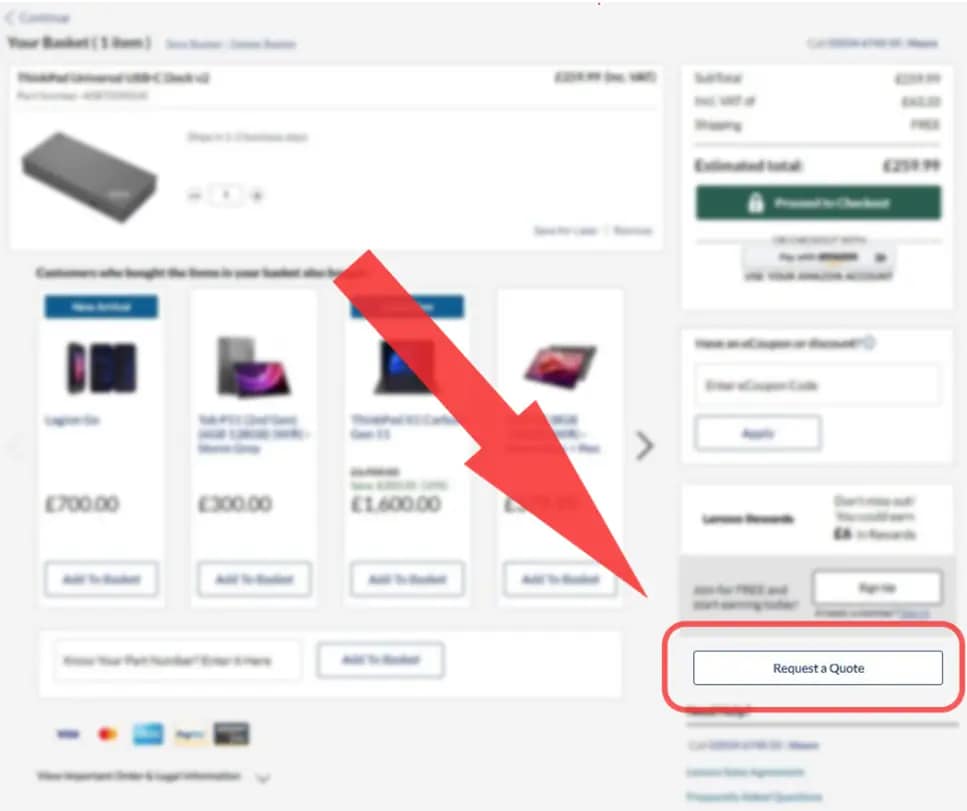
- Create a quote by using the “Request a Quote” button. (see the screenshot below)
- Enter your email address, press Yes and the quote will be generated.
- Once you receive the email, forward the quote to the customer care team at pmemea@lenovo.com . Please add your original order number.
- The customer care team then verifies the request and processes the price match request accordingly.
Please strictly follow these instructions. Not providing such an email/quote or sharing a screenshot will result in rejecting your Price Match refund request.
What is Lenovo Family Hub?
The Lenovo Family Hub is the central hub for your family's needs, offering a wide range of features. From device management to family Wishlist features, it serves as the focal point for family-related activities. This platform offers a user-friendly interface including purchasing capabilities for teenagers on lenovo.com.
How to create a Lenovo Family Hub?
To create a Lenovo Family Hub account, you must possess a Lenovo ID. Once you've logged in or created your Lenovo account, you'll discover the 'Create Family Hub with Lenovo' option to initiate the process. By default, you will assume the role of the Family Manager for Lenovo Family Hub.
Are there any limitations when it comes to setting up a Lenovo Family Hub account?
Setting up Lenovo Family Hub is entirely free and open to anyone with a Lenovo ID. The sole restriction is that each family account can accommodate a maximum of 7 active members, in addition to the Family Manager.
What are the account types available within Lenovo Family Hub? How do they differ from each other?
Lenovo Family Hub offers three types of accounts. Each Family Hub must have a designated Head of Household who serves as the Family Manager. Apart from the Head of Household, associated accounts can be either Teens or Adults. Teen accounts, created within the Lenovo Family Hub for members aged 13 to 17 (depending on country), have the capability to make purchases on Lenovo.com. However, certain restrictions apply, necessitating that their purchases and account management be overseen by the Family Manager. Please refer to Teens Account Management for further details. Adult profiles operate as individual adult Lenovo accounts, and may also be associated with a family account and have access to additional features.
Will I be able to deactivate the Lenovo Family Hub after it has been created?
Yes. If the Family Manager ever decides to deactivate a Lenovo Family Hub, the Family Manager has the flexibility to do so at any time. Just go to “My Family Details” within “My Family Hub”, and then click on the Gear icon positioned in the upper right corner to access the "Deactivate Family Hub" option. Once deactivated, everyone under the Family Hub will be notified of this change.
How do I invite individuals to join my Family account?
After successfully establishing your family account, proceed to the My Family Hub section within the Family Hub interface. Additionally, you will receive a welcome email upon completing the Lenovo Family Hub creation process. Clicking the View Family Hub button in the email will direct you to access the 'Invite a Family Member' option.
Adult profile requests only require a name and email address. Teen profiles require name, email, and month/year of birth. If you're inviting an individual to join your Family account, you will be required to review and agree to the Terms & Conditions and Lenovo Family Hub Privacy Statement before sending the invitation. Recipients will then receive an email notification with the option to either accept or decline the invitation after reviewing and agreeing to the Terms & Conditions and Lenovo Family Hub Privacy Statement.
What is the process for joining a Lenovo Family Hub?
To become a member of a Lenovo Family Hub, you can only do so through an invitation. The Family Manager for the Lenovo Family Hub must send you an invitation via email. By clicking the link provided in the invitation, you can then choose to either register your Lenovo account or create one under the Lenovo Family Hub. The Family Manager will be notified once you accept the invitation. For a newly created Lenovo ID, a separate confirmation email will be sent to confirm the account creation. For Teens, the Family Manager will have to provide the payment method and shipping address to complete the registration process.
How can I determine whether my invitation has been accepted?
After sending an invitation, you can easily track its status on your My Family Hub page. The status of each invitation, categorized as Recent, Pending, or Invitation Expired, will be prominently displayed alongside the name of the invitee, providing clear visibility into the acceptance process. Additionally, you'll receive email notifications once an invitation has been successfully accepted.
How long is the invitation good for? What happens when an invitation expires?
The invitation to join is valid for 30 days. When an invitation expires, the invitee will no longer have the option to join your Lenovo Family Hub. Nevertheless, the Family Manager retains the flexibility to resend the invitation.
Is it mandatory to upload photos?
Adult users are not required to upload a photo. This feature is unavailable for Teen accounts.
Is it possible to transfer the Family Manager role to a different member?
Yes. To appoint a different member within your Family Hub as the Family Manager, follow these steps: Log in and access My Family Hub, then navigate to My Family Details. Click on the Gear icon located in the upper right corner. From the drop-down menu, select Reassign Family Manager and confirm your choice. It's important to ensure that the person you intend to designate as the new Family Manager is already a part of your Lenovo Family Hub before making this assignment. The Family Manager cannot be a Teen account. The newly assigned member will be notified once the change is completed.
How do I remove someone from my Lenovo Family Hub?
To remove a member from your Family Hub, log in to your Lenovo account and access My Family Hub. Locate the member you wish to remove in the My Family Members list, then click on Delete, found in the lower right corner below their name. Confirm the action by clicking Confirm. Alternatively, you can drag and drop the module with their name off the list. Once the removal is complete, a confirmation email will be sent to you. The member being removed will also receive a notification of this change via email. This only removes the account from the family experience, not as an overall Lenovo account.
Can I opt to leave Lenovo Family Hub after joining?
Yes. Regardless of the type of account you possess, you have the freedom to leave at any time. To do so, visit My Profile and locate the Deactivate Account option. Upon confirming your deactivation, both you and the Family Manager will receive a confirmation email.
Can I rejoin a Family Hub after leaving?
Certainly! You can rejoin the Family Hub at any time by accepting a new invitation sent by the Family Manager.
What happens after the Teen reaches the age of 18?
Any time after a teen reaches the age of 18, it is up to the Family Manager to decide whether to keep or remove the Teen account from the Lenovo Family Hub. In addition, the teen profile can opt-in to an adult profile.
How can I keep track of all orders placed by members within the Family Hub?
To access your family order history, navigate to My Family Hub within My Account and click on View Order History under My Family Orders. For enhanced convenience, you can streamline your search by filtering results based on date, order owner, and store name.
Does creating a Teen account with a default payment method enable orders to be placed without any restrictions?
No, orders placed by a Teen account are subject to review by default.
How can I be aware if a family member has made an order?
When a member places an order, the Family Manager will see the order and its status under My Family Orders. If the order is placed by a Teen member, the Family Manager will promptly receive an email notification requesting approval. Additionally, you can easily locate pending orders at the top section of the My Family Orders page.
What is the order approval process?
When a Teen places an order, the Family Manager receives an email notification and can subsequently review the order's particulars, encompassing the product, quantity, payment method, and shipping address. Upon clicking Review Order in the email, the Family Manager is directed to the My Family Orders page, where they can proceed to either approve or reject the order. Furthermore, the Family Manager has the option to leave a comment explaining the rationale behind their decision for the Teen. If no action is taken by the Family Manager within three (3) days, the Teen’s order will be automatically canceled.
If I delete a member, will I still have access to view the order history associated with that member?
Yes. Any orders made by a member through the Family Hub will continue to be displayed in the Family Hub Order History, even after their account has been removed from the Family Hub.
How do I find all devices and related information that have been added to the Lenovo Family Hub?
Navigate to My Family Hub from My Account and select My Family Devices. In this section, you can organize the list by sorting or searching devices using keywords, owner names, or warranty status. Additionally, if you need assistance with a particular device, you can click on Get Support to connect with our Tech Support Team.
How do I add devices to the Lenovo Family Hub?
Adding devices to the Lenovo Family Hub is simple. Access My Family Hub from My Account, and within the My Family Devices section, click on Add a Device. Alternatively, you can click Add Device from the Manage Family Devices page. You also have the option to customize the nickname for each device while assigning it to a family member.
How do I edit devices that are already added to the Lenovo Family Hub?
To edit devices that are already added to the Lenovo Family Hub, access My Family Hub from My Account. Click My Family Devices and then choose Manage Family Devices. Locate the device you want to modify and click Edit. You can make changes to the product, owner, and its nickname. Note that when you change the device owner, the newly assigned person will receive a notification.
How do I remove devices from the Lenovo Family Hub?
Access My Family Hub through My Account, then click My Family Devices. From there, choose Manage Family Devices. Under each device, you'll find the Delete option. Be sure to confirm your selection to finalize this action.
How do I associate or reassign each device to the family member under the Lenovo Family Hub?
To associate or reassign a device to a family member within the Lenovo Family Hub, go to My Family Hub from My Account and locate the My Family Devices section. Click on Manage All Family Devices to view all the devices added to the Family Hub. Simply drag and drop the device to the module with the name of the new owner you wish to associate the device with. Please note that when you change the device owner, the newly assigned person will receive a notification.
How to set up default payment and shipping addresses for a Teen account?
Setting up default payment and shipping addresses for a Teen account is a straightforward process. After the Teen account accepts the invitation to join the Family Hub, a confirmation email is sent to the Family Manager. In the email, the Family Manager is asked to provide the default payment method and shipping address for the Teen's use. It's important to emphasize that Teens do not have the ability to modify this information.
How to change payment method and shipping address for a Teen account?
Updating the payment method and shipping address for a Teen account is a feature reserved for the Family Manager. To initiate these modifications, access My Family Hub within My Account, locate the preferred Teen account in the My Family section, and select Order Preference. From there, you can update the default payment method or shipping address, either by choosing from a drop-down menu or manually entering new information. Be sure to save all changes once you've completed the updates. It is also important to note that changes made after order submission will not apply to pending orders. To reflect updated information, a new order must be placed. If a payment method is shared with a Teen account, it cannot be deleted or removed unless the Family Manager sets a new default payment method for the Teen account.
Can Teens modify the default payment method or shipping address during checkout?
No, Teens can only use the pre-selected default payment and shipping address when placing orders. Any changes to these details must be handled by the Family Manager. If Teens need to request last minute changes, they can do so by leaving a comment for the Family Manager. However, it's important to note that changes made after order submission will not apply to pending orders. To reflect updated information, a new order must be placed.
Does creating a Teen account with a default payment method enable orders to be placed without any restrictions?
No, orders placed by a Teen account are subject to review by default.
What happens when a Teen Places an order?
When a Teen member initiates an order, the Family Manager will receive an email notification promptly. If approval is required, the Family Manager can approve or reject. Furthermore, all pending orders can be found in the top section of the My Family Orders page for the Family Manager.
What is the order approval process for a Teen account?
Unless otherwise specified, all orders initiated by a Teen account require approval from the Family Manager. Once an order is placed by a Teen account, the Family Manager receives an email notification and can subsequently review the order's particulars, encompassing the product, quantity, payment method, and shipping address. Upon clicking Review Order in the email, the Head of Household is directed to the My Family Orders page, where they can proceed to either approve or reject the order. Furthermore, the Head of Household has the option to leave a comment explaining the rationale behind their decision to the Teen. If no action is taken by the Family Manager within three (3) days, the Teen’s order will be automatically canceled.
How can a Teen member check the status of their placed orders?
The Teen can track the status of their orders by monitoring the Order Details page. After the Family Manager reviews and responds to the order request, the status will be updated on this page and conveyed through an email notification. If the Family Manager leaves a comment, it will also be visible on the order details and included in the email. Once an order is approved, it will proceed automatically with order preparation and shipping. Both the order owner and the Family Manager will be kept informed of the progress.
How to remove a Teen account?
To remove a Teen from your Family Hub, log in to your Lenovo account and access My Family Hub. Locate the Teen you wish to remove in the My Family Members list, then click Delete, located in the lower right corner below their name. Confirm the action by clicking Confirm. Alternatively, you can simply drag and drop the module with their name off the list. Upon completion of the removal, a confirmation email will be sent to you, and the Teen being removed will also receive a notification of this change via email. It is important to note that even though the Teen will no longer be able to use the payment method initially assigned to the account, all previously approved open orders will still be fulfilled.
What happens to a Teen account when the Teen reaches the age of 18?
Any time after a teen reaches the age of 18, it is up to the Head of Household to decide whether to keep or remove the Teen account from the Lenovo Family Hub. When removed from the Lenovo Family Hub, the Teen still has the option to create a new, regular individual account.
How do I create a Wishlist?
You can start a Wishlist by clicking on the heart icon on any page through any device. The heart icon is located on the upper right corner of a product image and next to the “Add to Cart” button on a product detail page. You can also create a Wishlist first from the main menu, then add products as you continue browsing the website.
Please be advised that Wishlist helps you create personalized collections of desired products for later purchases. Adding a product to a Wishlist doesn’t hold or reserve the product. It also doesn’t lock the price.
Do I need to have a Lenovo account to create a Wishlist?
No, you don’t need a Lenovo account to create a Wishlist. However, we strongly recommend that you sign in or create a Lenovo account for free to enjoy more benefits, such as creating multiple Wishlists and sharing Wishlists. You will never have to worry about expiration dates.
Can I have more than one Wishlist at a time?
A Lenovo account holder can create or receive up to 15 lists. Guests are limited to one Wishlist.
How many products can I add to a Wishlist?
You can have up to 30 items per Wishlist.
Will my Wishlist expire?
A Wishlist created under a Lenovo account will never expire. If you create a Wishlist as a guest, your list will only be stored for 30 days. Because of browser cookies, the Wishlist won’t be available when using different browsers. Additionally, if you clear cache/browsing history, you will also delete browser cookies along with your Wishlist data.
How do I mange my Wishlist?
To customize your Wishlists, sign into your Lenovo account. Go to My Account and choose Wishlist. You will see all the Wishlists you’ve created on the Wishlist homepage. You can use sort or search to easily find products you’ve saved. You can compare the products on your Wishlists or add them directly to cart. You also have the flexibility to move products to a different list, rename Wishlists and remove products. However, when you delete a Wishlist, information will be permanently removed. If the intention is to revoke access to a shared Wishlist, changing the Wishlist setting to “Private” will prevent other people from viewing it.
Can I share my Wishlist?
To share a Wishlist, you must sign in or create a Lenovo account. After logging in, go to Wishlist Homepage under My Account. Select the Wishlist you want to share with others by clicking the email icon. Make sure the Wishlist is set to be “Public”. A public Wishlist can be shared with up to 15 people. Your recipients will receive an email with a direct link to view and purchase from the shared Wishlist. They won’t be able to make changes.
How do I change the setting of a Wishlist?
After logging into your Lenovo account, go to My Account – Wishlist. Click the gear icon on the lower right corner.
You can adjust the setting in the pop-up window. If you change the setting of a Wishlist from Public to Private after sharing with others, your receipients will no longer be able to view the content.
I have problems accessing a Wishlist shared with me.
There could be a couple of reasons why you are having issues accessing a Wishlist that’s been shared with you. The owner may have changed the setting to “Private” or deleted it. If the owner changes the name of the Wishlist, it will have no impact on your access. If you believe there are technical issues after verifying with the Wishlist owner, please contact our Customer Care. Our team will be here to assist you.
If someone purchases a product from my shared Wishlist, will I be notified?
No, you will only receive order confirmation on your own purchases.
What happens if a product on a Wishlist becomes unavailable?
When products become unavailable, they will be greyed out, instead of being automatically removed from the Wishlist. A message will be displayed to tell you either the product is temporarily out of stock or permanently discontinued.
How does Lenovo protect the information of my teen?
At Lenovo, safeguarding privacy is our top priority. We employ multiple layers of protection to help ensure the security of your teen’s personal information. We offer full transparency through our privacy policy, which is provided (A) to the Family Manager at the creation of the Family Hub account and at the time they enroll a Teen account and (B) to the Teen via the invitation. Family Hub Teen accounts cannot be created without the teen agreeing to do so. See Lenovo’s Lenovo Family Hub Privacy Statement for more details.

How do I find my order number ?
Shortly after placing your order you will receive an order confirmation email containing your order number. Your order number can be located in the Top Left of this Email.
Shipping and Delivery
Lenovo offers free standard shipping and easy returns on all products. Shipping times listed are estimates based on production time and product availability. An estimated ship date will be available in your customer account after your order is placed. Ship dates do not include delivery times. Delivery times vary depending on shipping point location. Once your order has shipped you will receive a shipping confirmation email, which will include your tracking number.
Lenovo is not responsible for delays outside of our immediate control, including delays related to order processing, credit issues, inclement weather, or unexpected increase in demand.
We are unable to ship orders to PO boxes, hotels, freight forwarding or consolidation centers, 3rd party hubs, packing stations, collection points, international exporters, any address outside of the United Kingdom or these areas: Offshore territories – Jersey, Guernsey, Gibraltar, Channel Islands, Isle of Man
We are working with several partners to get the product to you as fast as possible so if you order multiple products, they might be delivered separately and by different carriers.
Can I change the delivery address of my order?
Unfortunately, we cannot change your shipping address after you submit your order. Once your order is submitted, your details are immediately sent to our warehouse and our system can no longer retrieve or change them.
If your shipment is not successfully delivered it will be returned to the warehouse and you will receive a full refund.
I requested a cancellation but my order has shipped.
If you order could not be cancelled and is shipped, please refuse to take delivery. You will be refunded once your order is returned to our warehouse.
What happens, if the delivery attempt failed?
Parcel will be returned to the warehouse and a refund will be initiated.
Shipping addresses cannot be changed.
Deliveries take place Mon-Fri, during usual business hours.
Can I have a specific time for delivery?
Unfortunately, we are unable to provide specific delivery times. Our carrier will attempt to deliver your products from Monday to Friday during business hours. If delivery attempts are unsuccessful, the product will be returned to our warehouse and you will receive a full refund.
Items missing?
If your order does not contain certain items that you purchased, please contact our Customer Service team
What do I do if my product arrived but is not functioning properly and/or will not power on?
Please contact our Technical Support team. You can use online self-support .
Damaged product or shipping box?
If your order contains damaged items upon arrival, please contact our Customer Service team
What do I do if my package shows delivered but I did not receive it?
Please contact our Customer Service team
Need help activating your Microsoft Office Products?
For assistance activating and/or troubleshooting your Office product(s) please click here
The website stated my product would ship in 5-7 business days when I ordered it, but order tracking page is showing that it will ship at a later date. Is there something wrong?
Shipping times listed are estimates based on production time and product availability. An estimated ship date will be posted in your customer account after your order is placed. If you chose any customizations when placing your order, your machine will be custom manufactured to meet the specifications you chose and estimated ship dates are subject to change. Once your order ships, your customer account will reflect that information and provide your tracking number. You will also receive a shipping confirmation email.
My shipping date changed, where can I find more information?
When placing your order all shipping dates that have been provided are estimated. While we make every effort to ship products according to the timelines provided, occasionally shipping can be delayed.
Any changes to shipping times will be communicated to you via email after your order has been placed. the most up to date shipping information can be found in your customer account .
Warranty Support
For warranty registration related questions, please click here .
Lenovo Lowest Unit Price Match.
For all purchases made on Lenovo.com/gb/ during the period from October 13 to December 31, 2025, Lenovo guarantees that if, subsequent to your order, the price drops lower we will refund the difference. This offer is subject to the limitations as defined below.
Product
Price Guarantee refund can be requested only for the exact same product, meaning the product number, e.g. 81SX0027UK, must be the same.
We are unable to match a build your own machine to a pre-built ready to ship machine and vice versa. You can easily distinguish them by looking at product numbers. All build your own machines have “CTO” as a part of the product numbers. E.g. 20QDCTO1WW.
Availability
The product must be in stock on Lenovo.com/gb and immediately available for purchase. The lower advertised unit price must be active on Lenovo.com/gb at the time a price match is requested.
What’s excluded:
Price Match cannot be applied to products that are no longer in stock.
Prices and offers of other retailers are excluded.
Price Match cannot be applied to orders delivered more than 14 days ago.
Products not purchased on Lenovo.com/gb are excluded.
Combination of coupons or special discounts or programs:
You may take advantage of price match or coupons/special discounts from Lenovo.com/gb , but not both.
Price Match cannot be combined with or apply to Lenovo Pro Store offers or discounts.
Limitations
The Lenovo Lowest Unit Price Guarantee is valid until December 31 2025 for the products purchased on Lenovo.com/gb/.
This guarantee is limited to 5 products per customer only and the credited amount will not exceed 5’000 GBP per customer.
Lenovo reserves the right to alter these terms and conditions or cancel the promotion in case of abuse or in case of a price error.
How to get your refund
To seek a Price Match refund, please follow these instructions.
- Insert all your products, including warranties and accessories, from the original order into the shopping basket.
- Create a quote by using the “Request a Quote” button. (see the screenshot below)
- Enter your email address, press Yes and the quote will be generated.
- Once you receive the email, forward the quote to the customer care team at pmemea@lenovo.com . Please add your original order number.
- The customer care team then verifies the request and processes the price match request accordingly.
Please strictly follow these instructions. Not providing such an email/quote or sharing a screenshot will result in rejecting your Price Match refund request.
I am thinking of cancelling my order
You can cancel your order through your customer account or by contacting our Customer Service Team . Lenovo cannot guarantee cancellation once an order has been placed as it might be already in the pre-shipment phase or has already shipped. However you can always refuse the shipment and once it is returned to our warehouse, a refund will be initiated. After submitting a cancellation request, you will be notified via e-mail whether the order was cancelled successfully or has been shipped.
My package is damaged
With your signature, you are confirming, that the parcel was in perfect condition. If you see the damage straight away, we suggest refusing the parcel and contact our Customer Service team to initiate a refund or replacement.
Lenovo.com return and replacement policy
We offer easy returns including no restocking fee, no shipping and handling fee if you use our return process.
You can request a return or replacement through your customer account or by contacting our Customer Service Team within 14 days after delivery, providing the return reason, your order number, product number and the serial number of the device (for PCs, docking stations and adapters).
In case your product has a software issue, please consider contacting our Technical Support first. They might be able to quickly fix the issue over the phone by updating the bios and drivers.
Products purchased from 01/11/25 can be returned by 31/01/2026 thanks to our extended return period.
Past 14 days return policy
If a defect is discovered after 14 days please contact the Technical Support Team to arrange a repair.
Return Process – Next Steps
- In case the device's BIOS was locked by you via password, please unlock it.
- Any authorized return must include the product and all accessories in their original packaging, along with the invoice.
- You will receive an email from our return provider, Cycleon/Rebound (no-reply@cycleon.com ), in no more than 3 working days. If it does not arrive, please check your junk/spam email folders.
- We provide two options: drop-off or pick-up. If the total weight of your items exceeds a specific value, only the pick-up option is available. *The default option is drop-off and therefore the initial email will include labels for drop-off.
- In case you prefer pick-up, kindly follow the instruction in the email from Cycleon/Rebound, you will be provided with new labels for pick-up.
- Note that Cycleon/Rebound is not the carrier. The carrier’s name is located on your shipping label, and it depends on your country and whether you select drop-off or pick-up.
- Please make sure to print the correct labels. Don’t use the drop-off label for pick-up or vice versa. For any inquiries after your product(s) have been returned, please be sure to provide proof of collection.
Please always keep your copy of the signed label for further reference.
When will I get my refund?
Lenovo will initiate your refund within 7 working days of the original product arriving at our warehouse in the Netherlands.
*Please note, once the product is picked up or handed over to a drop-off point it can take up to 14 days to return the product.
After the refund has been initiated, the time it will take for your refund to reach you will depend on your payment method.
- Credit Card, PayPal, Debit Card:It can take up to 7 working days after the refund is initiated for the funds to show on your account.
- Wire transfer:You will be sent an email with a secure link requesting your bank account details for the refund. It can take up to 14 working days for the funds to be returned to your account.
- Financing or Klarna:your payment will be adjusted with the provider.
When will I get my replacement?
If your replacement request has been processed and the original product has been received back at the warehouse, a replacement order will be placed and you will receive a replacement order number. The replacement order should have the same estimated shipping lead time as your original order.
Your order may have been cancelled due to one of the following reasons:
- We are unable to ship orders to PO boxes, hotels, freight forwarding or consolidation centers, 3rd party hubs, packing stations, collection points, international exporters, or any address outside of United Kingdom
- Please ensure to enter your billing information exactly as it appears on the credit card billing statement
- Lenovo inventory, website or internal system error
- If you selected to pay by wire transfer and payment has not been made with 11 days of the order being placed then your order will automatically be cancelled. If payment has been made, we will send you an email with a link requesting your bank details, once these details have been returned to us we can refund the payment received
Please note that cancelled orders will not be shipped and any authorization holds will be reversed according to your financial institution policies.
Availability
Offers, prices, specifications and availability may change without notice. Lenovo will contact you and cancel your order if the product becomes unavailable or if there was a pricing or typographic error. Products advertised may be subject to limited availability, depending on inventory levels and demand. Lenovo strives to provide a reasonable quantity of products to accommodate estimated consumer demand.
Important information for resellers
Products and services purchased on Lenovo’s website, Lenovo.com, are for an end user customer’s own use and not for resale. Lenovo reserves the right to refuse or cancel orders if Lenovo suspects a customer is purchasing products and services for the purpose of reselling them.
We offer a wide range of connected devices - including accessories, warranties and spare parts. Several laptop and desktop series have an option to be configured based on your needs.
What kind of Lenovo PC is right for me?
Please contact Sales team so we may assist you in choosing a product that is perfect for you!
Unfortunately, no changes can be made once the order has been submitted.
- Please make sure that you are on the correct website for your local - it can be checked and switched in the bottom right corner of the web page.
- Please select a convenient shipping address that allows a delivery (more information here).
- The selected payment method can impact the order processing time (more information here).
- To include your VAT registration number on your order (more information here).
Once your order has been placed, you will receive an order confirmation email with login details to your customer account where you can look up your order and view the most up to date shipping information. As soon as an item is shipped, you can also download the invoice as a PDF.
We accept Visa®, MasterCard®, American Express®, Debit Cards, Wire Transfer ,PayPal , Amazon Pay, Klarna , Trustly & TreviPay(LenovoPro Only) .
Our servers encrypt all information submitted to them, so you can be confident that your credit card information will be kept safe and secure.
Wire Transfer
If you decide to pay via wire transfer, there are some specifications you might want to consider.
After order placement, you will receive an email containing our bank details. From this moment you have 11 days for the payment transfer.
The funds will show as debited from your account on the same day that payment has been made, but it can take between 2 to 3 working days for it to show in our system. Your order will then go into processing and you will receive the order confirmation email containing your order details and customer account details.
Please note, in case a refund is required for your wire transfer order, we will have to request your bank details, as they are not provided to us with the payment. The refund process itself can take up to 14 business days, depending on the involved bank.
Credit Card
During checkout, Lenovo will request a pre-authorization for the total order amount from your credit card company, this is not an actual charge. Once your order ships, your credit card will be charged.
Here is some information that might be helpful for you during the order process:
Please ensure you enter your billing address as it appears on your credit card to avoid cancellation of your order. This way it passes our credit card verification process.
There are many possible reasons for a credit card not being accepted, the most common reasons are:
- The credit card has expired.
- You have reached or exceeded your credit limit.
- You have exceeded your daily charge limit.
- The credit card number, expiry date or security code have been entered incorrectly.
If, after you have checked that the above reasons are not applicable, your credit card payment is still being rejected, please contact your issuing bank for help. If your bank confirms there are no issues with the credit card you are using but you continue to experience issues, please contact our Customer Service for help.
PayPal is an efficient way to make a payment.
The charge will be processed once your order has been placed. Refunds will be issued back to your PayPal account within 5-7 business days.
In case you would like to pay with PayPal Express, the data saved in your PayPal account will be used for your order but, you will not need to complete checkout at PayPal.
Klarna
Click here for Klarna's Terms & Conditions and Privacy Policy .
Trustly - Online Banking
Trustly is a digital payment method that allows you to pay for purchases online securely using existing funds from any one of your online bank accounts. You do not need your bank card, nor do you need to download any other app or pre-register to pay with Trustly.
How do I use Trustly?
At checkout, choose the Pay by Bank option. You will be directed to your online bank to confirm the payment.
1. Select your bank
2. Log in to your account - Your bank details are not shared with anyone.
3. Confirm payment
And that’s it. Simple and secure.
For more information, visit https://www.trustly.com/en-GB/what-is-trustly.
Amazon Pay(Express)
Amazon Pay makes shopping easier by letting you use your Amazon account information to complete your purchase. There’s no need to remember multiple logins and passwords for different sites. All you need is your Amazon username and password. It’s a fast, easy, and secure way to shop online.
For more information visit Read more about what is Amazon Pay? | Amazon Pay
TreviPay -Pay-by-invoice(LenovoPro only)
Lenovo Partners with TreviPay, a trusted global payment solution, to streamline B2B transactions and offer businesses greater financial flexibility.
1. Fast & Simple Application– A one-time setup to get started quickly.
2. Smooth Checkout Experience– No need for manual payment entries at every purchase.
3. Flexible Payment Terms– Enjoy 30-day terms to manage cash flow effectively.
4. Online Account Management– A dedicated portal to track invoices, payments, and account details.
5. Secure & Reliable– Prioritizing safety in every transaction.
6. Dedicated Support– Get assistance for any payment-related inquiries.
FAQ
1. Who should I contact if I need help with the 30-day terms program powered by TreviPay?
For questions or support regarding the Lenovo Invoicing Program (30-day terms), you can contact Lenovo Invoicing customer service team directly at +448082380053 lenovoinvoicing@b2b.credit or reach out to us for assistance via the help section on the website.
2. How can I find VAT Invoice on LenovoPro?
Step 1: Navigate to Your Orders
1. Once logged in, go to "My Account" in the top right menu under your name.
2. Find "My Orders" section and click on "View order history".
Step 2: Select the Order
1. Find the order for which you need the VAT invoice.
2. Click on the order number or "View Order status" option.
Step 3: Download the VAT Invoice
1. Look for the "Download Invoice" button in the Order Information section.
2. Click it to download a PDF version of your invoice.
3. Save or print the invoice as needed.
Troubleshooting & Support
1. If you don’t see the invoice option, it may not be available yet. Try checking back later.
2. Ensure that the order was placed under a business account if VAT invoices are required.
3. If you need further assistance, contact Lenovo Customer Supportvia the help section on the website. Do not open a dispute via the TreviPay portal if you need help finding the VAT invoice.
VAT Data, Invoice and Order Details (Including Delivery Address)
Please take care when entering the VAT data (Including VAT number/Tax ID, Company Name etc.), invoice and Order details (Including Delivery Address) as once the order is submitted these details cannot be changed.
Where will I find my invoice?
24 hours after a product is shipped, you should receive an email with the invoice. You can't find the email? No problem: you can download the related invoice as PDF document from your customer account, also 24 hours after shipment.
I am a business customer
Join our Lenovo PRO store for free and save up to an extra 12% and enjoy other benefits. However, a business customer can place orders on public store.
I would like to place an order on public store and have my VAT number on the invoice
If you have a VAT number that you would like to have on the invoice, please place the order as business customer (can be selected when providing the billing address), this gives you the option to enter the number during the order placement process.
Do I have to pay VAT?
The price of the Products will be as quoted on our website from time to time, except in cases of obvious error. Product prices include VAT at the prevailing rate. The price quoted on our website for Products excludes delivery charges which are quoted separately on our website.
If you are a business customer, you can provide your VAT exemption number while placing your order. The number will be included on your invoice and taxes can be claimed back by contacting your local authority.
In certain circumstances, Lenovo is obliged to charge VAT regardless of whether you are VAT registered or not. We will provide you with a VAT Invoice that documents the VAT which is charged.
Can you send me a Tax Form?
We’re happy to assist with inquiries regarding Tax but Tax forms are not provided by Lenovo, please contact your Local Tax Authority for this.
Did you find a lower price elsewhere?
If you find the same product for sale on identical terms at a lower price at selected UK retailers, you can make a price match request before purchaseby contacting our Sales team .
What do we mean by the same product?
The Lenovo product number, e.g. 82A10065MZ, must be the same. Both us and the competitor must have the product in stock and ready for delivery. The product must be brand new. This policy excludes any “Build Your Own” type of models.
What UK Retailers we match price?
Currys, Argos, John Lewis, Very
Which Prices do we match?
Lenovo will match the prices of in-stock products, excluding delivery charges, product protection plans or other services. Lenovo does not match trade prices, prices only available as part of a liquidated stock or prices only available as part of paid for memberships, or prices based on restricted groups (e.g.staff discounts).
For us to verify retailers’ prices, they need to be publicly available on their website to all customers.
What is excluded?
You may take advantage of price match or coupons/special discounts from Lenovo.com, but not both.
Price Match cannot be combined with or apply to Lenovo BUSINESS offers or discounts.
Outlet or in-store purchases, refurbished or used items, and pricing errors are excluded as well.
This guarantee is limited to ONE price match per product, per customer.
Price match is not available after you purchased a product: the service is only available pre-sale.
Lenovo reserves the right to alter these terms and conditions or cancel the promotion in case of abuse or in case of a price error.
How to request a price match?
To seek a Price Match, please contact our Sales team during business hours and have the active link to the product you are requesting a price match to.
How do I create a Wishlist?
You can start a Wishlist by clicking on the heart icon on any page through any device. The heart icon is located on the upper right corner of a product image and next to the “Add to Cart” button on a product detail page. You can also create a Wishlist first from the main menu, then add products as you continue browsing the website.
Please be advised that Wishlist helps you create personalized collections of desired products for later purchases. Adding a product to a Wishlist doesn’t hold or reserve the product. It also doesn’t lock the price.
Do I need to have a Lenovo account to create a Wishlist?
No, you don’t need a Lenovo account to create a Wishlist. However, we strongly recommend that you sign in or create a Lenovo account for free to enjoy more benefits, such as creating multiple Wishlists and sharing Wishlists. You will never have to worry about expiration dates.
Can I have more than one Wishlist at a time?
A Lenovo account holder can create or receive up to 15 lists. Guests are limited to one Wishlist.
How many products can I add to a Wishlist?
You can have up to 30 items per Wishlist.
What is Lenovo Family Hub?
The Lenovo Family Hub is the central hub for your family's needs, offering a wide range of features. From device management to family Wishlist features, it serves as the focal point for family-related activities. This platform offers a user-friendly interface including purchasing capabilities for teenagers on lenovo.com.
How to create a Lenovo Family Hub?
To create a Lenovo Family Hub account, you must possess a Lenovo ID. Once you've logged in or created your Lenovo account, you'll discover the 'Create Family Hub with Lenovo' option to initiate the process. By default, you will assume the role of the Family Manager for Lenovo Family Hub.
Are there any limitations when it comes to setting up a Lenovo Family Hub account?
Setting up Lenovo Family Hub is entirely free and open to anyone with a Lenovo ID. The sole restriction is that each family account can accommodate a maximum of 7 active members, in addition to the Family Manager.
What are the account types available within Lenovo Family Hub? How do they differ from each other?
Lenovo Family Hub offers three types of accounts. Each Family Hub must have a designated Head of Household who serves as the Family Manager. Apart from the Head of Household, associated accounts can be either Teens or Adults. Teen accounts, created within the Lenovo Family Hub for members aged 13 to 17 (depending on country), have the capability to make purchases on Lenovo.com. However, certain restrictions apply, necessitating that their purchases and account management be overseen by the Family Manager. Please refer to Teens Account Management for further details. Adult profiles operate as individual adult Lenovo accounts, and may also be associated with a family account and have access to additional features.
Will I be able to deactivate the Lenovo Family Hub after it has been created?
Yes. If the Family Manager ever decides to deactivate a Lenovo Family Hub, the Family Manager has the flexibility to do so at any time. Just go to “My Family Details” within “My Family Hub”, and then click on the Gear icon positioned in the upper right corner to access the "Deactivate Family Hub" option. Once deactivated, everyone under the Family Hub will be notified of this change.
How do I invite individuals to join my Family account?
After successfully establishing your family account, proceed to the My Family Hub section within the Family Hub interface. Additionally, you will receive a welcome email upon completing the Lenovo Family Hub creation process. Clicking the View Family Hub button in the email will direct you to access the 'Invite a Family Member' option.
Adult profile requests only require a name and email address. Teen profiles require name, email, and month/year of birth. If you're inviting an individual to join your Family account, you will be required to review and agree to the Terms & Conditions and Lenovo Family Hub Privacy Statement before sending the invitation. Recipients will then receive an email notification with the option to either accept or decline the invitation after reviewing and agreeing to the Terms & Conditions and Lenovo Family Hub Privacy Statement.
What is the process for joining a Lenovo Family Hub?
To become a member of a Lenovo Family Hub, you can only do so through an invitation. The Family Manager for the Lenovo Family Hub must send you an invitation via email. By clicking the link provided in the invitation, you can then choose to either register your Lenovo account or create one under the Lenovo Family Hub. The Family Manager will be notified once you accept the invitation. For a newly created Lenovo ID, a separate confirmation email will be sent to confirm the account creation. For Teens, the Family Manager will have to provide the payment method and shipping address to complete the registration process.
How can I determine whether my invitation has been accepted?
After sending an invitation, you can easily track its status on your My Family Hub page. The status of each invitation, categorized as Recent, Pending, or Invitation Expired, will be prominently displayed alongside the name of the invitee, providing clear visibility into the acceptance process. Additionally, you'll receive email notifications once an invitation has been successfully accepted.
How long is the invitation good for? What happens when an invitation expires?
The invitation to join is valid for 30 days. When an invitation expires, the invitee will no longer have the option to join your Lenovo Family Hub. Nevertheless, the Family Manager retains the flexibility to resend the invitation.
Is it mandatory to upload photos?
Adult users are not required to upload a photo. This feature is unavailable for Teen accounts.
Is it possible to transfer the Family Manager role to a different member?
Yes. To appoint a different member within your Family Hub as the Family Manager, follow these steps: Log in and access My Family Hub, then navigate to My Family Details. Click on the Gear icon located in the upper right corner. From the drop-down menu, select Reassign Family Manager and confirm your choice. It's important to ensure that the person you intend to designate as the new Family Manager is already a part of your Lenovo Family Hub before making this assignment. The Family Manager cannot be a Teen account. The newly assigned member will be notified once the change is completed.
How do I remove someone from my Lenovo Family Hub?
To remove a member from your Family Hub, log in to your Lenovo account and access My Family Hub. Locate the member you wish to remove in the My Family Members list, then click on Delete, found in the lower right corner below their name. Confirm the action by clicking Confirm. Alternatively, you can drag and drop the module with their name off the list. Once the removal is complete, a confirmation email will be sent to you. The member being removed will also receive a notification of this change via email. This only removes the account from the family experience, not as an overall Lenovo account.
Can I opt to leave Lenovo Family Hub after joining?
Yes. Regardless of the type of account you possess, you have the freedom to leave at any time. To do so, visit My Profile and locate the Deactivate Account option. Upon confirming your deactivation, both you and the Family Manager will receive a confirmation email.
Can I rejoin a Family Hub after leaving?
Certainly! You can rejoin the Family Hub at any time by accepting a new invitation sent by the Family Manager.
What happens after the Teen reaches the age of 18?
Any time after a teen reaches the age of 18, it is up to the Family Manager to decide whether to keep or remove the Teen account from the Lenovo Family Hub. In addition, the teen profile can opt-in to an adult profile.
How can I keep track of all orders placed by members within the Family Hub?
To access your family order history, navigate to My Family Hub within My Account and click on View Order History under My Family Orders. For enhanced convenience, you can streamline your search by filtering results based on date, order owner, and store name.
Does creating a Teen account with a default payment method enable orders to be placed without any restrictions?
No, orders placed by a Teen account are subject to review by default.
How can I be aware if a family member has made an order?
When a member places an order, the Family Manager will see the order and its status under My Family Orders. If the order is placed by a Teen member, the Family Manager will promptly receive an email notification requesting approval. Additionally, you can easily locate pending orders at the top section of the My Family Orders page.
What is the order approval process?
When a Teen places an order, the Family Manager receives an email notification and can subsequently review the order's particulars, encompassing the product, quantity, payment method, and shipping address. Upon clicking Review Order in the email, the Family Manager is directed to the My Family Orders page, where they can proceed to either approve or reject the order. Furthermore, the Family Manager has the option to leave a comment explaining the rationale behind their decision for the Teen. If no action is taken by the Family Manager within three (3) days, the Teen’s order will be automatically canceled.
If I delete a member, will I still have access to view the order history associated with that member?
Yes. Any orders made by a member through the Family Hub will continue to be displayed in the Family Hub Order History, even after their account has been removed from the Family Hub.
How do I find all devices and related information that have been added to the Lenovo Family Hub?
Navigate to My Family Hub from My Account and select My Family Devices. In this section, you can organize the list by sorting or searching devices using keywords, owner names, or warranty status. Additionally, if you need assistance with a particular device, you can click on Get Support to connect with our Tech Support Team.
How do I add devices to the Lenovo Family Hub?
Adding devices to the Lenovo Family Hub is simple. Access My Family Hub from My Account, and within the My Family Devices section, click on Add a Device. Alternatively, you can click Add Device from the Manage Family Devices page. You also have the option to customize the nickname for each device while assigning it to a family member.
How do I edit devices that are already added to the Lenovo Family Hub?
To edit devices that are already added to the Lenovo Family Hub, access My Family Hub from My Account. Click My Family Devices and then choose Manage Family Devices. Locate the device you want to modify and click Edit. You can make changes to the product, owner, and its nickname. Note that when you change the device owner, the newly assigned person will receive a notification.
How do I remove devices from the Lenovo Family Hub?
Access My Family Hub through My Account, then click My Family Devices. From there, choose Manage Family Devices. Under each device, you'll find the Delete option. Be sure to confirm your selection to finalize this action.
How do I associate or reassign each device to the family member under the Lenovo Family Hub?
To associate or reassign a device to a family member within the Lenovo Family Hub, go to My Family Hub from My Account and locate the My Family Devices section. Click on Manage All Family Devices to view all the devices added to the Family Hub. Simply drag and drop the device to the module with the name of the new owner you wish to associate the device with. Please note that when you change the device owner, the newly assigned person will receive a notification.
How to set up default payment and shipping addresses for a Teen account?
Setting up default payment and shipping addresses for a Teen account is a straightforward process. After the Teen account accepts the invitation to join the Family Hub, a confirmation email is sent to the Family Manager. In the email, the Family Manager is asked to provide the default payment method and shipping address for the Teen's use. It's important to emphasize that Teens do not have the ability to modify this information.
How to change payment method and shipping address for a Teen account?
Updating the payment method and shipping address for a Teen account is a feature reserved for the Family Manager. To initiate these modifications, access My Family Hub within My Account, locate the preferred Teen account in the My Family section, and select Order Preference. From there, you can update the default payment method or shipping address, either by choosing from a drop-down menu or manually entering new information. Be sure to save all changes once you've completed the updates. It is also important to note that changes made after order submission will not apply to pending orders. To reflect updated information, a new order must be placed. If a payment method is shared with a Teen account, it cannot be deleted or removed unless the Family Manager sets a new default payment method for the Teen account.
Can Teens modify the default payment method or shipping address during checkout?
No, Teens can only use the pre-selected default payment and shipping address when placing orders. Any changes to these details must be handled by the Family Manager. If Teens need to request last minute changes, they can do so by leaving a comment for the Family Manager. However, it's important to note that changes made after order submission will not apply to pending orders. To reflect updated information, a new order must be placed.
Does creating a Teen account with a default payment method enable orders to be placed without any restrictions?
No, orders placed by a Teen account are subject to review by default.
What happens when a Teen Places an order?
When a Teen member initiates an order, the Family Manager will receive an email notification promptly. If approval is required, the Family Manager can approve or reject. Furthermore, all pending orders can be found in the top section of the My Family Orders page for the Family Manager.
What is the order approval process for a Teen account?
Unless otherwise specified, all orders initiated by a Teen account require approval from the Family Manager. Once an order is placed by a Teen account, the Family Manager receives an email notification and can subsequently review the order's particulars, encompassing the product, quantity, payment method, and shipping address. Upon clicking Review Order in the email, the Head of Household is directed to the My Family Orders page, where they can proceed to either approve or reject the order. Furthermore, the Head of Household has the option to leave a comment explaining the rationale behind their decision to the Teen. If no action is taken by the Family Manager within three (3) days, the Teen’s order will be automatically canceled.
How can a Teen member check the status of their placed orders?
The Teen can track the status of their orders by monitoring the Order Details page. After the Family Manager reviews and responds to the order request, the status will be updated on this page and conveyed through an email notification. If the Family Manager leaves a comment, it will also be visible on the order details and included in the email. Once an order is approved, it will proceed automatically with order preparation and shipping. Both the order owner and the Family Manager will be kept informed of the progress.
How to remove a Teen account?
To remove a Teen from your Family Hub, log in to your Lenovo account and access My Family Hub. Locate the Teen you wish to remove in the My Family Members list, then click Delete, located in the lower right corner below their name. Confirm the action by clicking Confirm. Alternatively, you can simply drag and drop the module with their name off the list. Upon completion of the removal, a confirmation email will be sent to you, and the Teen being removed will also receive a notification of this change via email. It is important to note that even though the Teen will no longer be able to use the payment method initially assigned to the account, all previously approved open orders will still be fulfilled.
What happens to a Teen account when the Teen reaches the age of 18?
Any time after a teen reaches the age of 18, it is up to the Head of Household to decide whether to keep or remove the Teen account from the Lenovo Family Hub. When removed from the Lenovo Family Hub, the Teen still has the option to create a new, regular individual account.
How do I create a Wishlist?
You can start a Wishlist by clicking on the heart icon on any page through any device. The heart icon is located on the upper right corner of a product image and next to the “Add to Cart” button on a product detail page. You can also create a Wishlist first from the main menu, then add products as you continue browsing the website.
Please be advised that Wishlist helps you create personalized collections of desired products for later purchases. Adding a product to a Wishlist doesn’t hold or reserve the product. It also doesn’t lock the price.
Do I need to have a Lenovo account to create a Wishlist?
No, you don’t need a Lenovo account to create a Wishlist. However, we strongly recommend that you sign in or create a Lenovo account for free to enjoy more benefits, such as creating multiple Wishlists and sharing Wishlists. You will never have to worry about expiration dates.
Can I have more than one Wishlist at a time?
A Lenovo account holder can create or receive up to 15 lists. Guests are limited to one Wishlist.
How many products can I add to a Wishlist?
You can have up to 30 items per Wishlist.
Will my Wishlist expire?
A Wishlist created under a Lenovo account will never expire. If you create a Wishlist as a guest, your list will only be stored for 30 days. Because of browser cookies, the Wishlist won’t be available when using different browsers. Additionally, if you clear cache/browsing history, you will also delete browser cookies along with your Wishlist data.
How do I mange my Wishlist?
To customize your Wishlists, sign into your Lenovo account. Go to My Account and choose Wishlist. You will see all the Wishlists you’ve created on the Wishlist homepage. You can use sort or search to easily find products you’ve saved. You can compare the products on your Wishlists or add them directly to cart. You also have the flexibility to move products to a different list, rename Wishlists and remove products. However, when you delete a Wishlist, information will be permanently removed. If the intention is to revoke access to a shared Wishlist, changing the Wishlist setting to “Private” will prevent other people from viewing it.
Can I share my Wishlist?
To share a Wishlist, you must sign in or create a Lenovo account. After logging in, go to Wishlist Homepage under My Account. Select the Wishlist you want to share with others by clicking the email icon. Make sure the Wishlist is set to be “Public”. A public Wishlist can be shared with up to 15 people. Your recipients will receive an email with a direct link to view and purchase from the shared Wishlist. They won’t be able to make changes.
How do I change the setting of a Wishlist?
After logging into your Lenovo account, go to My Account – Wishlist. Click the gear icon on the lower right corner.
You can adjust the setting in the pop-up window. If you change the setting of a Wishlist from Public to Private after sharing with others, your receipients will no longer be able to view the content.
I have problems accessing a Wishlist shared with me.
There could be a couple of reasons why you are having issues accessing a Wishlist that’s been shared with you. The owner may have changed the setting to “Private” or deleted it. If the owner changes the name of the Wishlist, it will have no impact on your access. If you believe there are technical issues after verifying with the Wishlist owner, please contact our Customer Care. Our team will be here to assist you.
If someone purchases a product from my shared Wishlist, will I be notified?
No, you will only receive order confirmation on your own purchases.
What happens if a product on a Wishlist becomes unavailable?
When products become unavailable, they will be greyed out, instead of being automatically removed from the Wishlist. A message will be displayed to tell you either the product is temporarily out of stock or permanently discontinued.
How does Lenovo protect the information of my teen?
At Lenovo, safeguarding privacy is our top priority. We employ multiple layers of protection to help ensure the security of your teen’s personal information. We offer full transparency through our privacy policy, which is provided (A) to the Family Manager at the creation of the Family Hub account and at the time they enroll a Teen account and (B) to the Teen via the invitation. Family Hub Teen accounts cannot be created without the teen agreeing to do so. See Lenovo’s Lenovo Family Hub Privacy Statement for more details.